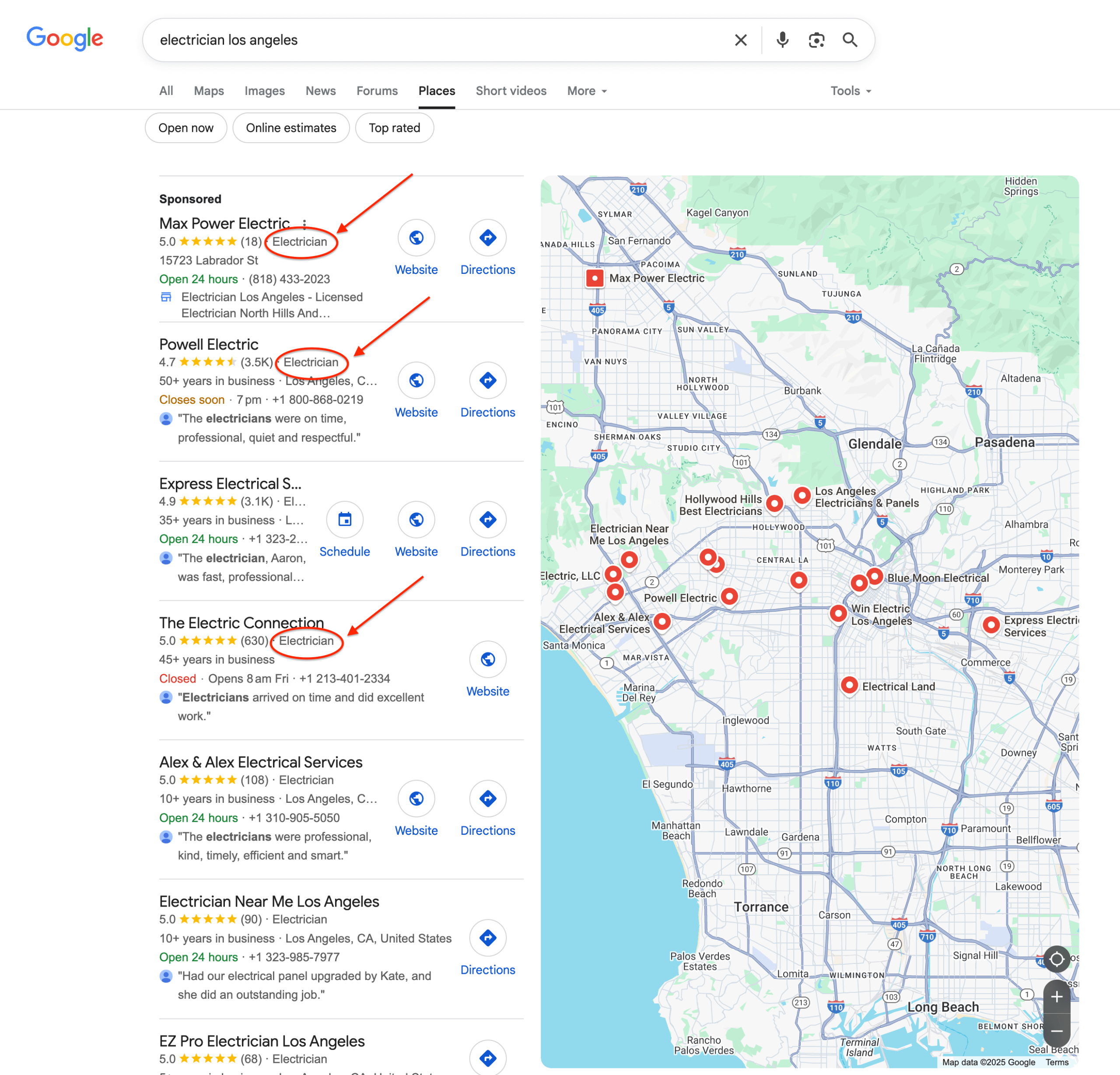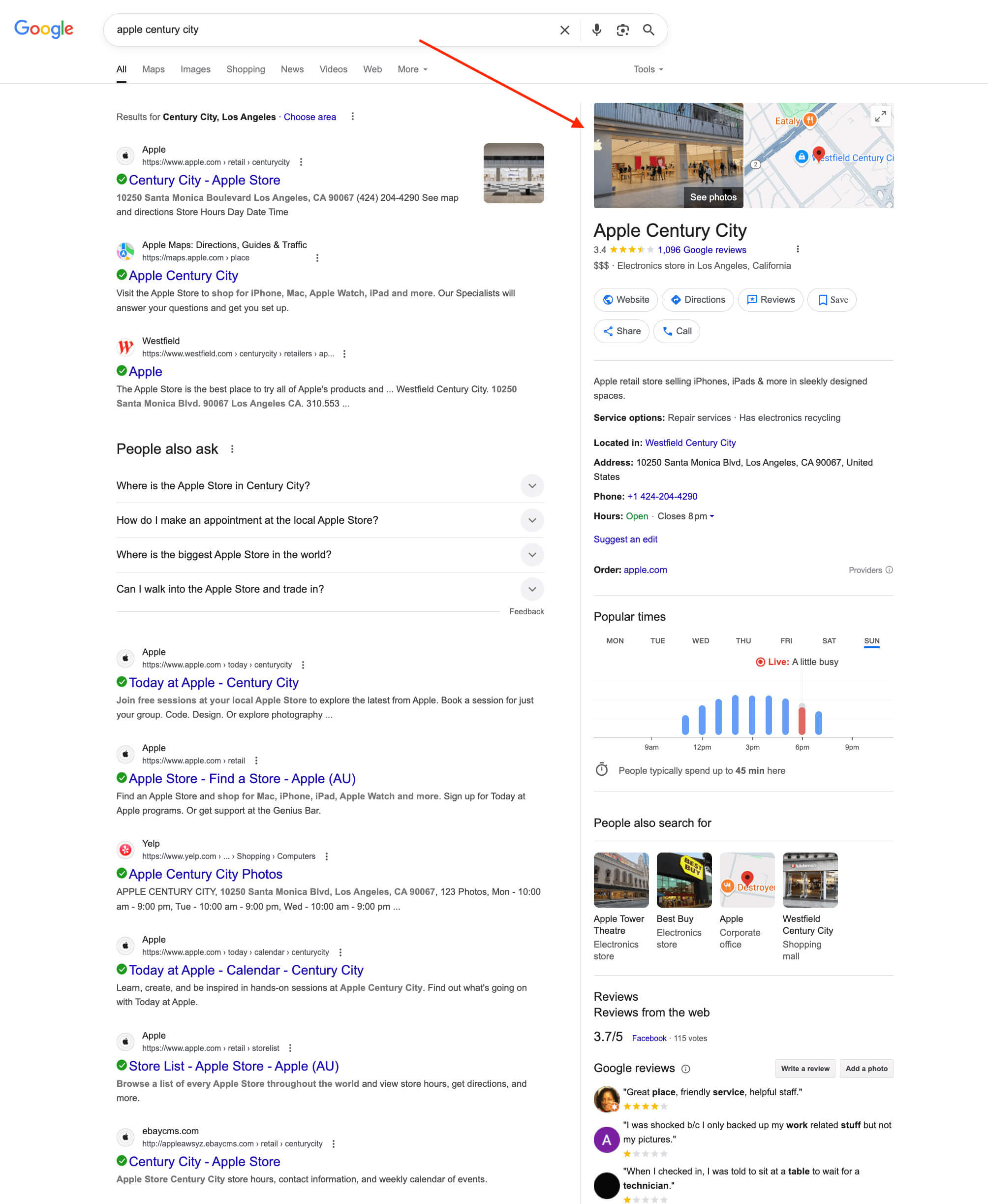
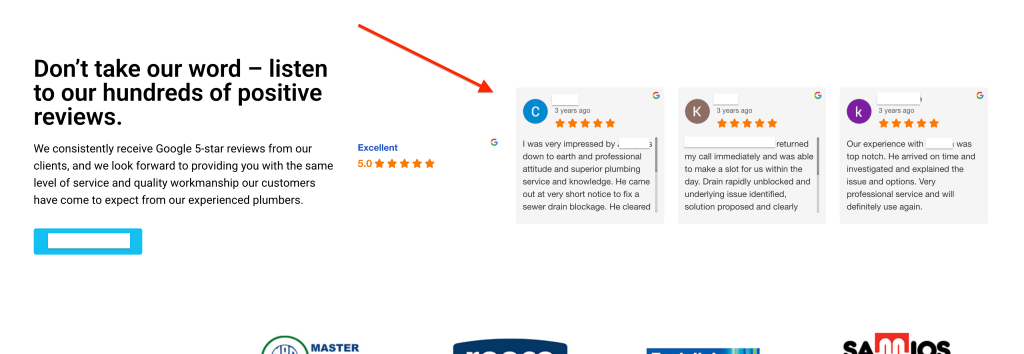
👉 If you’ve been searching for how to get Google reviews on website pages, there are a few easy ways to make it happen — even if you’re not technically minded.
Whether you want to show just one good review or automatically display every new review you get, there’s a few different ways you can do it.
Some setups take a couple of clicks. Others need a bit more setup and tech skill.
It also depends on the platform your website is built on — and how much control you want.
In this guide, we’ll break down the most common ways to show your reviews on your website, then walk through the best options for WordPress, Wix, Squarespace and custom websites.
📌 Note:
👉 The tools and apps mentioned in this guide are not sponsored and not paid placements.
They’re just the ones we’ve seen work well — and that we genuinely recommend based on ease of use, features and flexibility.
The main ways to display Google reviews
Before we jump into platform-specific ways of displaying your reviews, here’s a quick look at the three most common ways to add Google reviews to your site.
1. Embed a single review (manual option) ⚙️
You can embed one review at a time on your site directly from Google Maps using a small HTML code snippet.
It’s simple, but it won’t update automatically — and works best if you just want to highlight one specific review.
2. Use a widget or plugin (recommended for most websites) 🔍
Widgets and plugins are the easiest way to show multiple reviews in one place — like in a slider, grid or sidebar.
Many tools let you customise the design and how reviews appear. Some are free and some have paid plans with extra features like auto-updating and showing any new reviews you get.
3. Use the Google Places API (developer method) 👩🏻💻
If you want full control and have developer help, the Google Places API lets you pull your reviews directly from Google and display them however you like.
You’ll need an API key and some code — but it can give you the most flexibility.
Best options by website platform
Let’s take a look at what works best depending on where your site is built.
✅ WordPress
Recommended: Use the Trustindex plugin
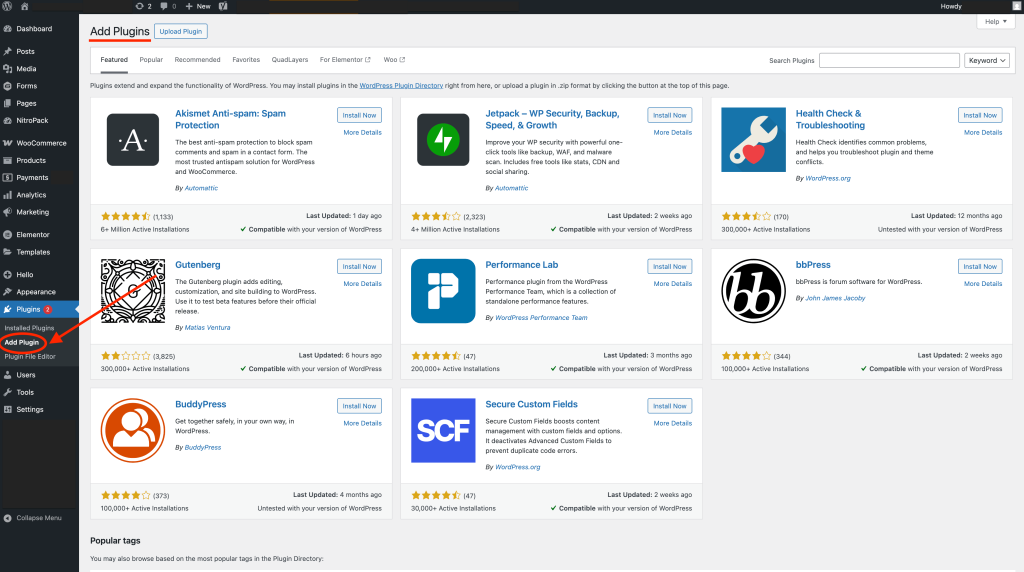
One of the easiest ways to get Google reviews on a WordPress site is by using the Trustindex plugin.
It’s beginner-friendly, doesn’t require a Google API key, and also supports reviews from platforms like Yelp and Facebook.
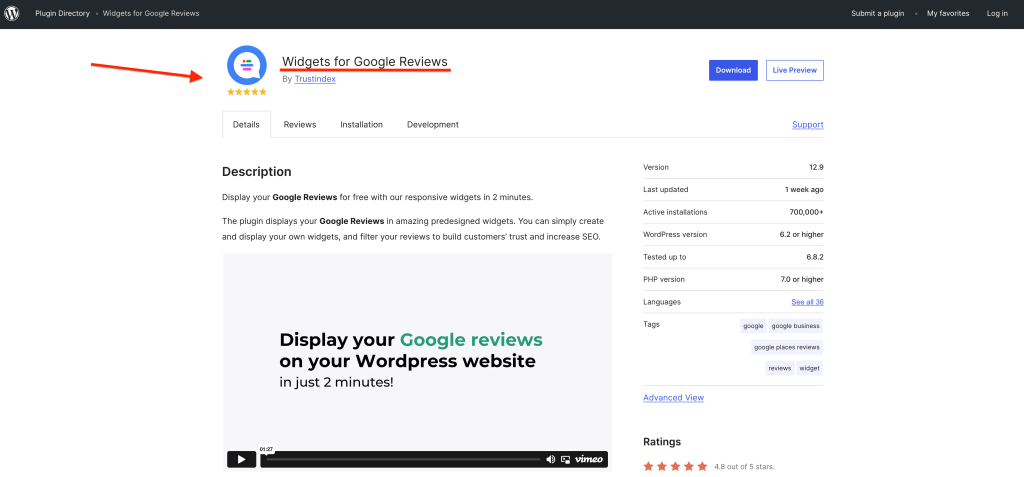
🔵 Free version: Shows your Google reviews, but you’ll need to manually refresh to pull in any new ones
🔵 Paid plans (from US $65/year): Includes auto-sync of new reviews, advanced layouts, filters, branding removal and more
🔵 Includes layouts like sliders, grids, badges, carousels — all fully customisable
Setup is simple:
- Log into your WordPress dashboard and install the Trustindex plugin

- Connect your Google Business Profile or add your Google Place ID


- Choose a layout template and style to display the reviews

- Copy the shortcode and paste it into any page or section where you want reviews to show

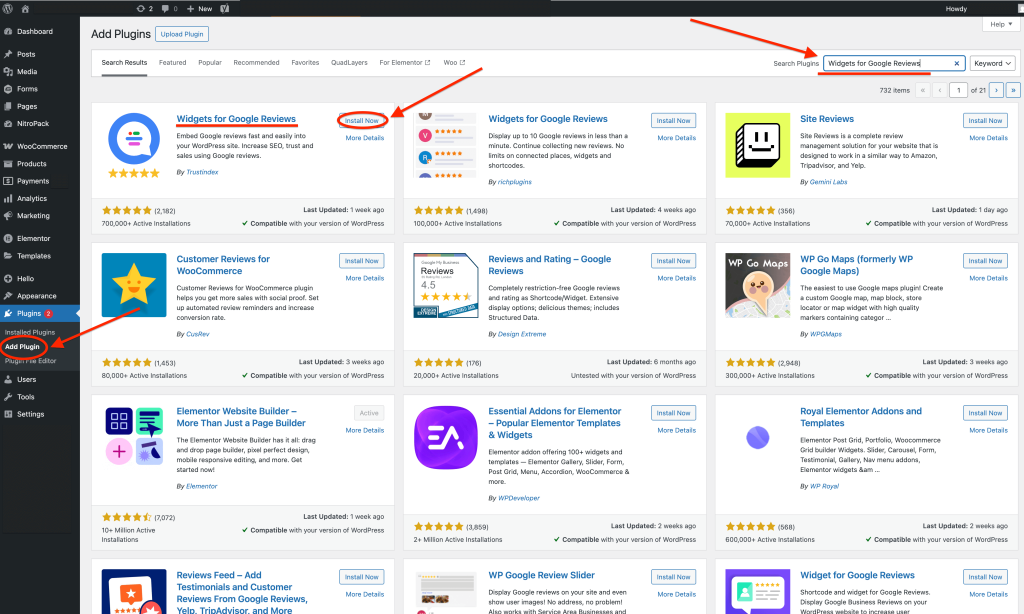
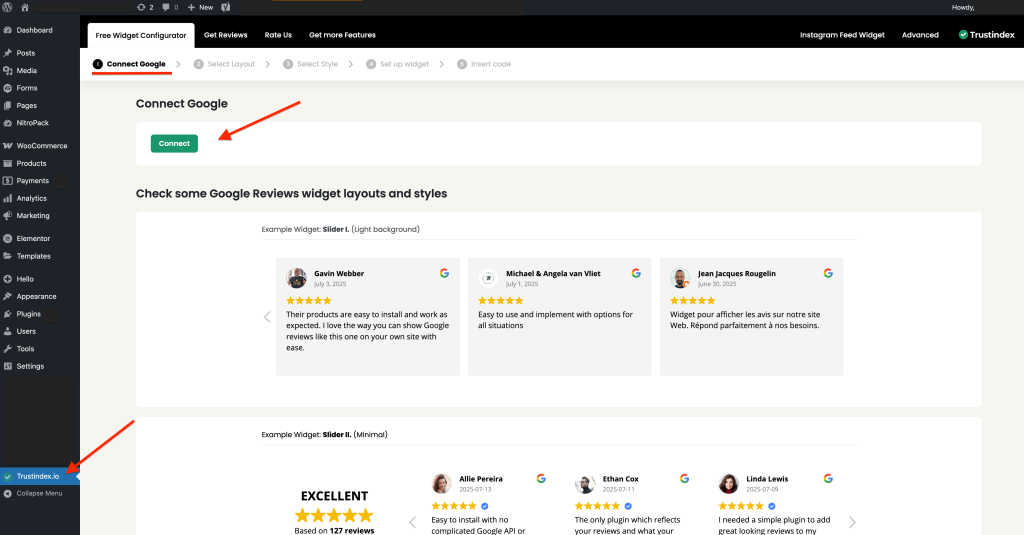
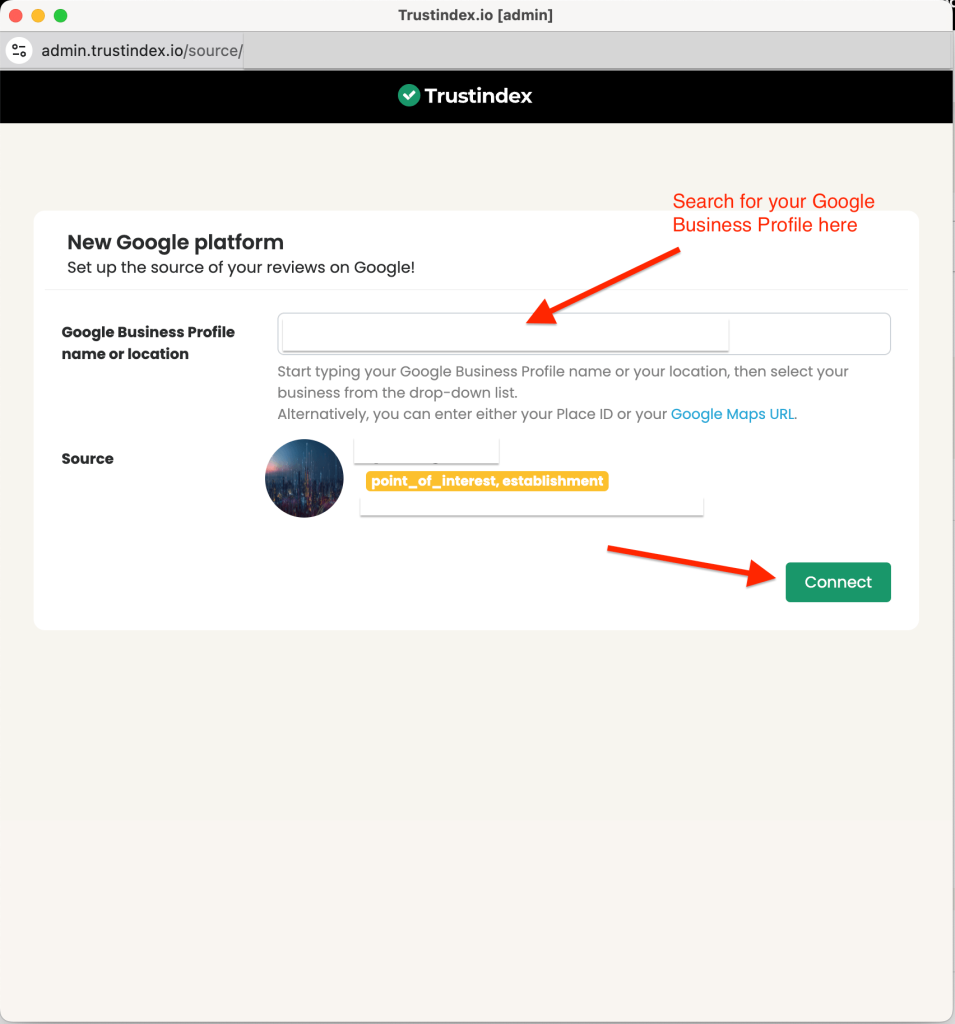
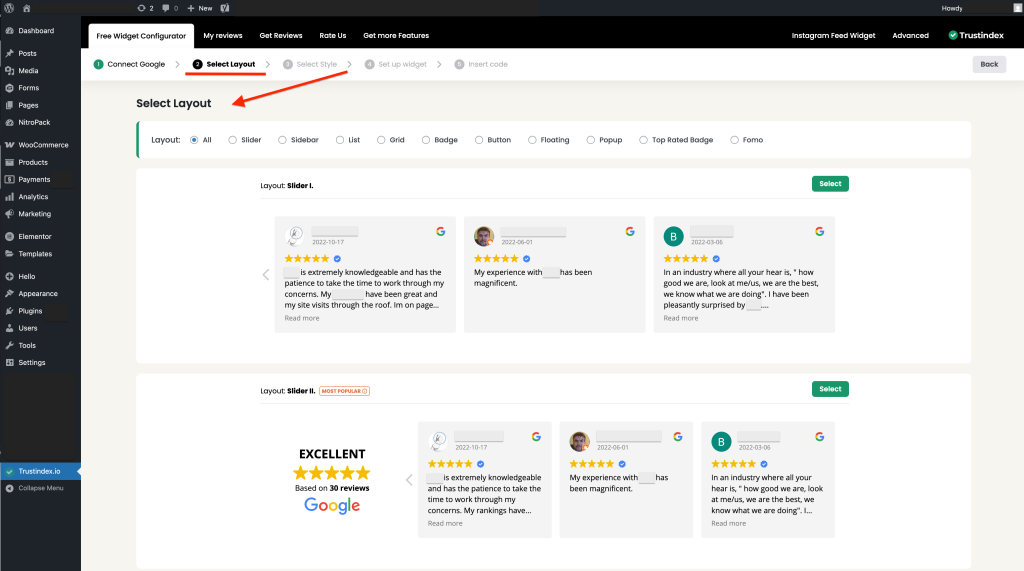
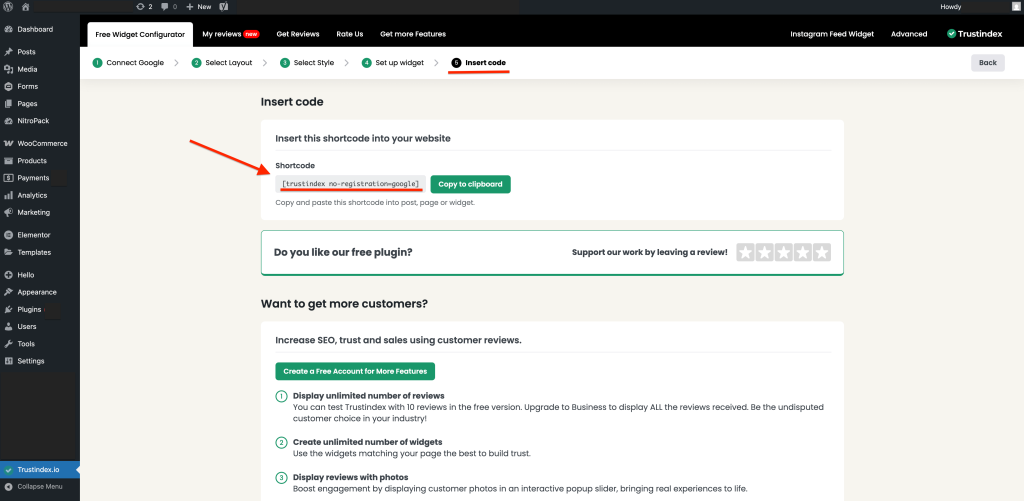
While there are other plugins out there that can display your reviews, Trustindex is the one we recommend — it’s easy to use, customisable and works across multiple review platforms.
👉 Follow Trustindex’s setup instructions here if you need help getting started.
✅ Wix
Recommended: Use the Google Reviews PRO app
If you’re using Wix, the most straightforward way to add Google reviews to your website is with the Google Reviews PRO app from the Wix App Market.
It’s easy to install, customisable and doesn’t require any coding — making it a great option for non-tech users and small teams.
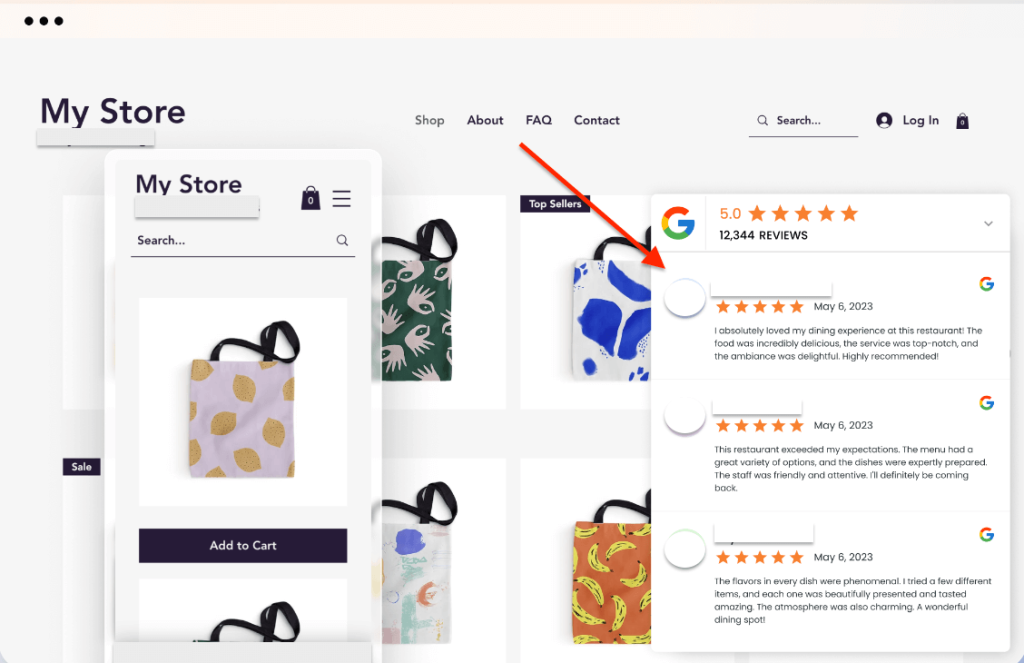
🔵 Free version: Shows up to 10 reviews on your site
🔵 Paid plans (from US $8/month): Includes auto-sync to show new reviews, branding removal, filters and more layout control
🔵 Includes layouts like grids, sliders, carousels and floating widgets — all fully customisable
Setup is simple:
- Open the Wix App Market
- Find Google Reviews PRO in the app market
- Install the app
- Connect your Google Business Profile to the app
- Choose a layout and place it anywhere on your site

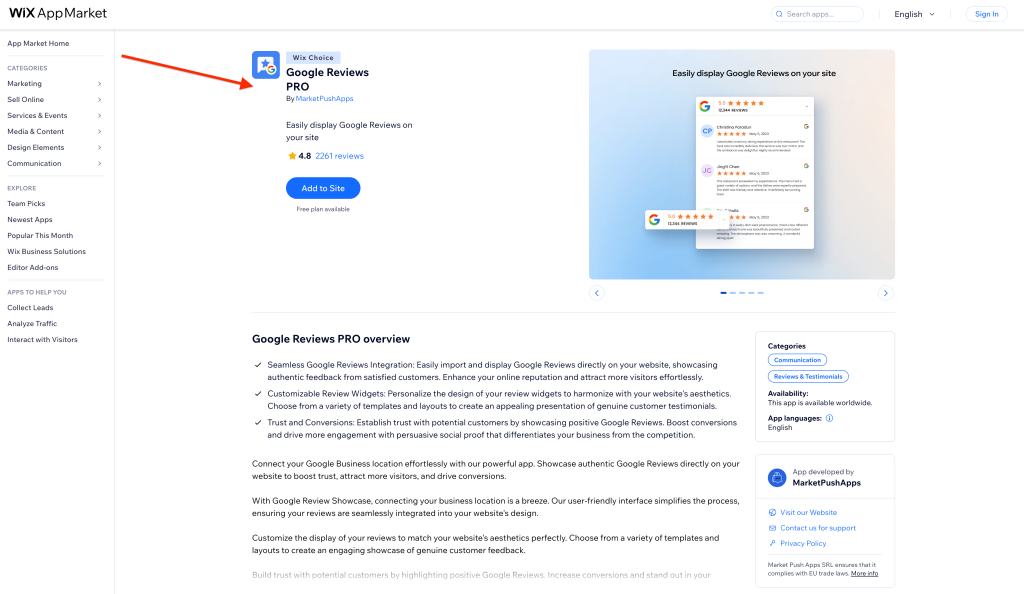
While there are a few other apps that show your reviews on Wix, Google Reviews PRO is the one we recommend — it’s highly rated, simple to set up and built specifically for Wix users.
👉 Follow these more detailed setup instructions for Google Reviews PRO here if you need help getting started.
✅ Squarespace
Recommended: Use the SociableKIT widget
Squarespace doesn’t have built-in plugins or apps for Google reviews — but you can still display them using a widget from SociableKIT.
With this method, you’ll first create and customise your widget on SociableKIT’s site. Then you copy a small embed code and paste it into your Squarespace site using a Code Block. 
It takes just a couple of minutes, and no coding is needed.
🔵 Free version: Shows a limited number of reviews with SociableKIT branding
🔵 Paid plans (from US $100/year): Includes auto-sync to display new reviews, branding removal, more layouts, filters and design options
🔵 Includes layouts like carousels, grids, sliders and review cards — all easy to customise
Setup is simple:
- Go to SociableKIT
- Create a Google Reviews widget
- Choose your layout and customise how you want reviews to appear
- Copy the embed code
- Open your Squarespace site and edit the page where you want reviews to show
- Paste the code into a Code Block
- Save and publish
You can also create separate widgets for other platforms — like Facebook or Yelp — and embed those wherever you’d like them on your site.
👉 Follow SociableKIT’s Squarespace setup guide here if you want a step-by-step walkthrough.
✅ Custom websites
Recommended: Use the Google Places API (developer method)
If your website is custom-built (and you have access to a developer), the most flexible way to show Google reviews is by using the Google Places API.
This lets you pull in reviews directly from your Google Business Profile — and display them however you want on your site.
It’s a one-time setup, but does require some coding knowledge.
📌 Note:
If a developer built your site, it’s worth paying them to handle this for you — since they’ll already know how your site is structured and have the skill to do it. If you’re not in touch with your developer anymore, a new developer should also be able to do this as a once-off task.
🔵 Best for: Developers or teams who want full design control
🔵 API required: You’ll need to generate an API key through Google Cloud
🔵 Custom layouts: Build your own layout or feed using HTML/CSS/JavaScript
🔵 Ongoing usage: Keep in mind the Places API has monthly usage limits and charges (based on number of API calls)
Setup overview:
- Go to the Google Places API dashboard
- Create a new project or select an existing one
- Enable the Places API
- Generate an API key
- Use the key in your code to fetch review data
- Style and display the reviews with your front-end
👉 View Google’s API documentation here for more details.
🎉 Once you’ve got your reviews showing on your site, that social proof starts working for you — helping build trust with new visitors and turning more clicks into customers. 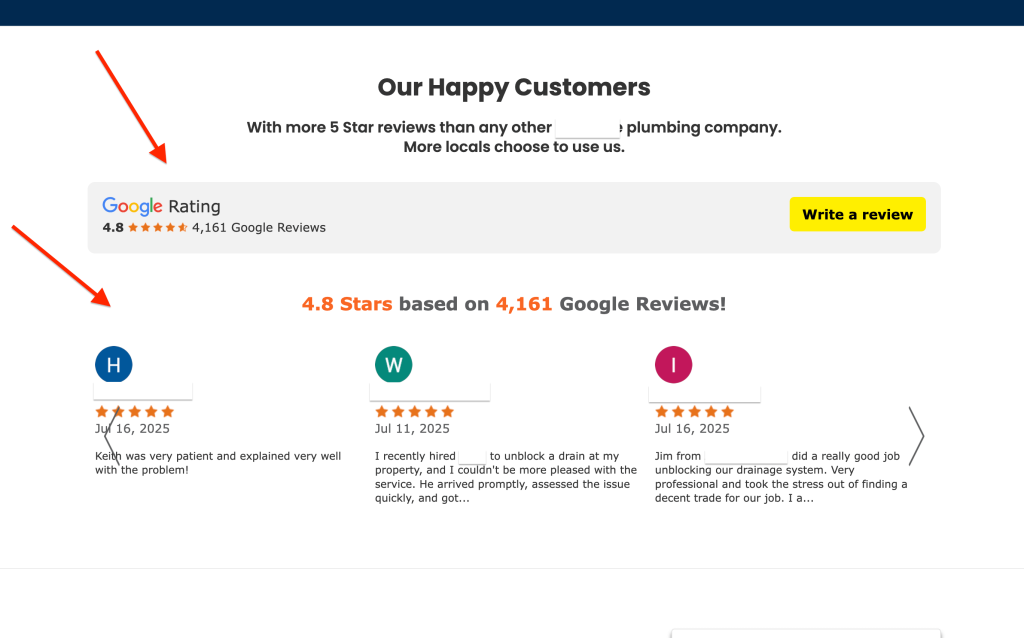
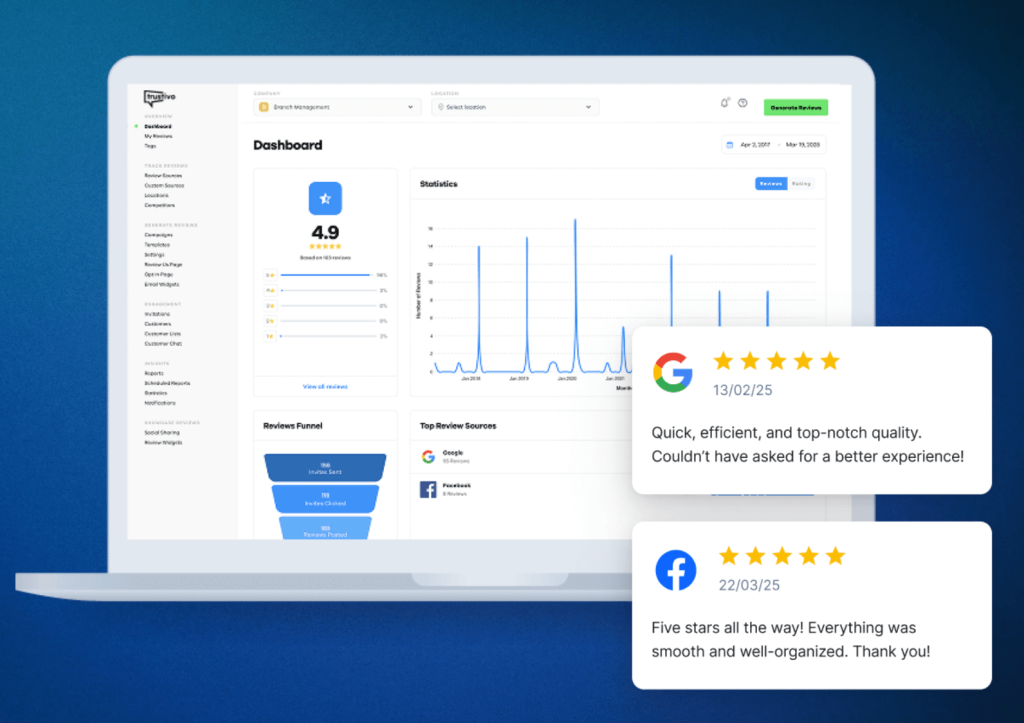
And if you want a consistent stream of 5-star reviews to keep feeding through and showing on your site, tools like Trustivo make it easy to get more reviews on autopilot ⚙️
Want to try Trustivo for yourself? Start a free 30-day trial today or get in touch to learn more.
👉 Start your free trial today.
Frequently asked questions
Can I embed just one specific Google review?
Yes — but this can only be done manually.
First, find your business on Google Maps, scroll to the review you want to show on your website, click the three dots (⋮) and then select “Embed review.”
Copy this HTML code and paste it into your site (anywhere you can add HTML and want the review to be displayed).
This works on most platforms but won’t auto-update or rotate reviews.
👉 If you’re not sure where to find your reviews to do this, follow our quick guide: How to find your Google reviews.
What if I don’t have many reviews yet?
If your profile only has one or two reviews, it might be worth waiting until you’ve collected a few more before embedding them on your site.
To make getting reviews quicker and easier, you can use a review generation tool like Trustivo to automate your review collection via email and SMS.
This way your business always has fresh reviews coming in that can be displayed on your website and improve your Google rating.
Will adding reviews slow down my site?
Most plugins and widgets are built to be lightweight and won’t noticeably impact load times — especially if you choose a reputable one.
If site speed is a concern for you, look for widgets with caching, lazy loading or manual refresh options.
Can I display reviews from other platforms too (like Facebook or Yelp)?
Yes — several of the tools mentioned in this guide (like Trustindex and SociableKIT) support pulling in reviews from multiple sources.
Depending on the platform your site is built with and the tool you use, you can either create separate widgets for each platform — or combine your Google, Facebook and other reviews into one display.