Scam Warning: Trustivo does not offer jobs via WhatsApp.
Got a review on your Google Business Profile (GBP) that doesn’t seem right? ❌
Whether it’s spammy, fake, or completely unfair, knowing how to dispute a review on Google is important — especially when your reputation is on the line.
But here’s the thing: not every bad or fake review can be removed. Google won’t take sides in customer disputes, and they won’t delete a review just because it’s negative (or fake either).
But if a review does break their rules, there’s a clear process to challenge it.
In this guide, we’ll walk you through:
✅ What Google will and won’t remove
✅ How to flag a fake review for removal
✅ How to report a Google review that violates policies
✅ What happens after you report or dispute it
✅ How to appeal if your request gets denied
We’ll also touch on common queries like:
- Can you delete a bad Google review?
- How do I delete a review on my Google Business Profile?
- How do I remove fake Google reviews?
- How to disable reviews on Google?
Let’s start with the basics.
What kind of reviews can you dispute?
Google won’t remove a review just because it’s harsh, exaggerated or unfair. Their focus is on whether it violates content policies — not how you feel about it.
✅ You can dispute a review if it contains:
- Spam or fake review content
- Offensive or abusive language
- Off-topic or irrelevant info
- Conflicts of interest (e.g. a competitor pretending to be a customer)
- Personal attacks or discriminatory remarks
❌ You can’t dispute a review just because:
- You don’t agree with what was said
- The customer seemed unreasonable
- You think your service was fine
If it breaks one of Google’s policies, you can move ahead and report the review.
Next, we’ll show you how to dispute a Google review using Google’s official tools.
How to dispute Google reviews (step by step)
If a review clearly breaks Google’s rules, you can report or flag it for removal.
There are two easy ways to do this — using the Reviews Management Tool or through your Business Profile Manager.
Both do the same thing and report the Google review, so it’s up to you which one you prefer.
Option 1: Using the Reviews Management Tool
📌 This is Google’s recommended method — especially if you manage multiple locations or Google Business Profiles.
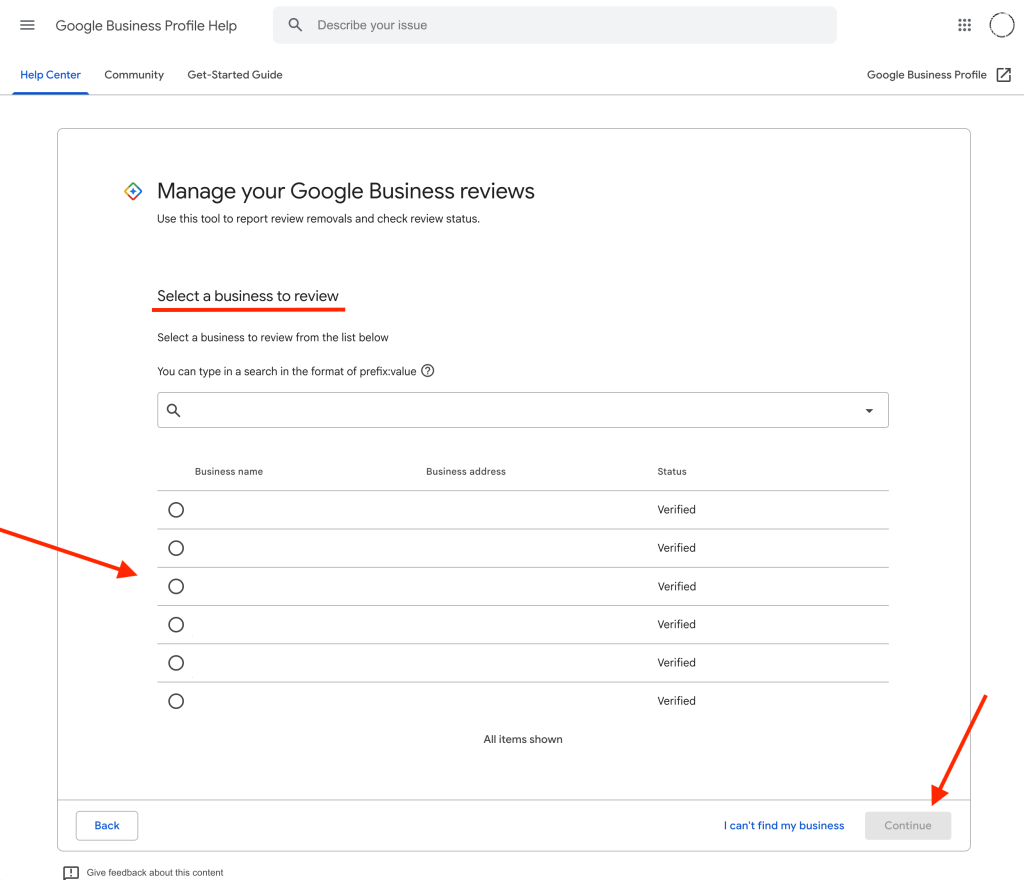
- Go to the Reviews Management Tool. Make sure to sign in with the Google account linked to your GBP and business (if you’re not already).
Choose the business you want to manage (if you manage multiple) and click “Continue”.
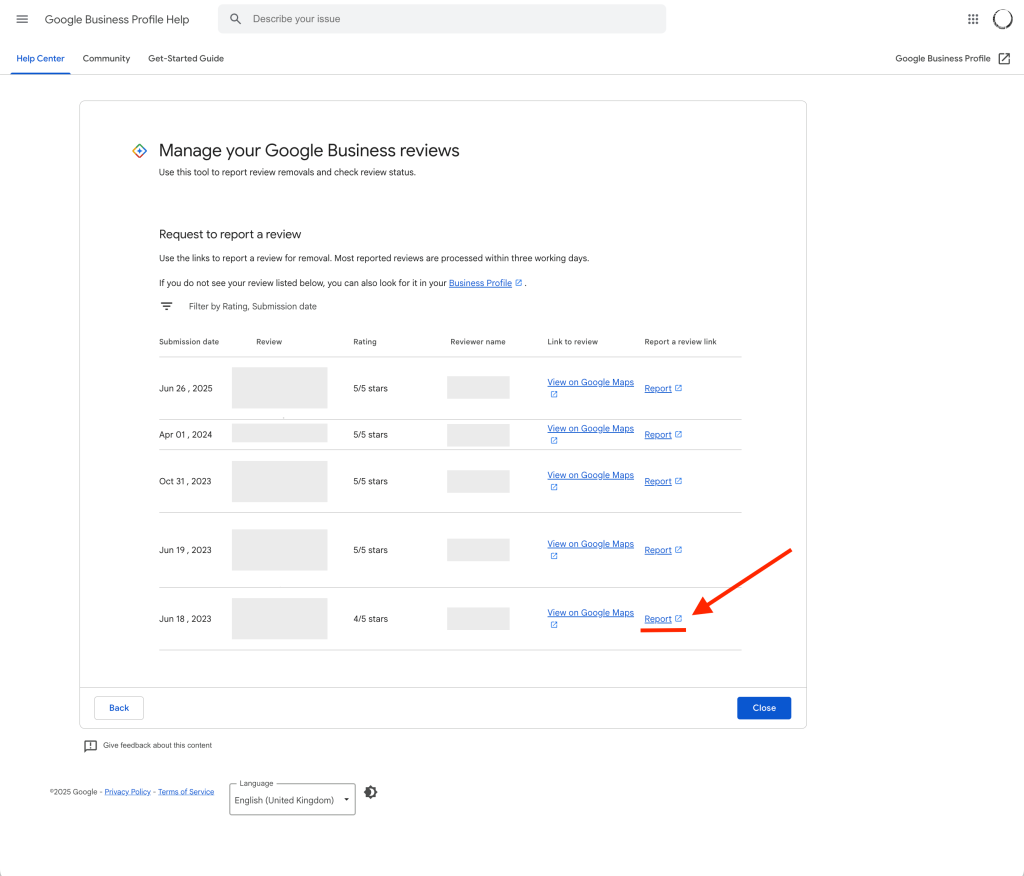
- Find the review you want to dispute, then click “Report”.

- Choose a reason (e.g. spam, harassment, or conflict of interest) that you want to report the review for.

- Click “Submit” to finish reporting the review.


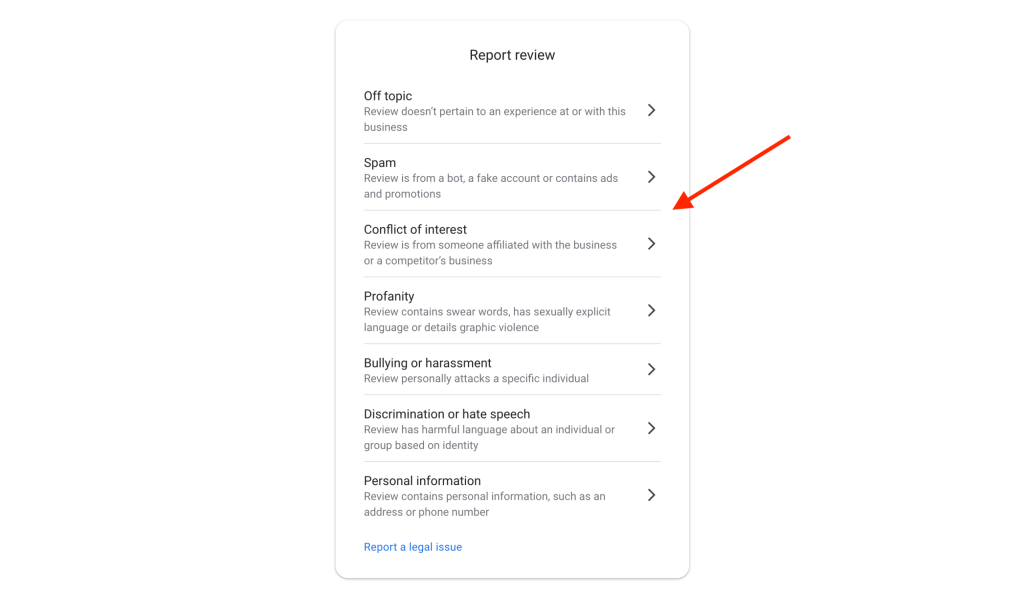
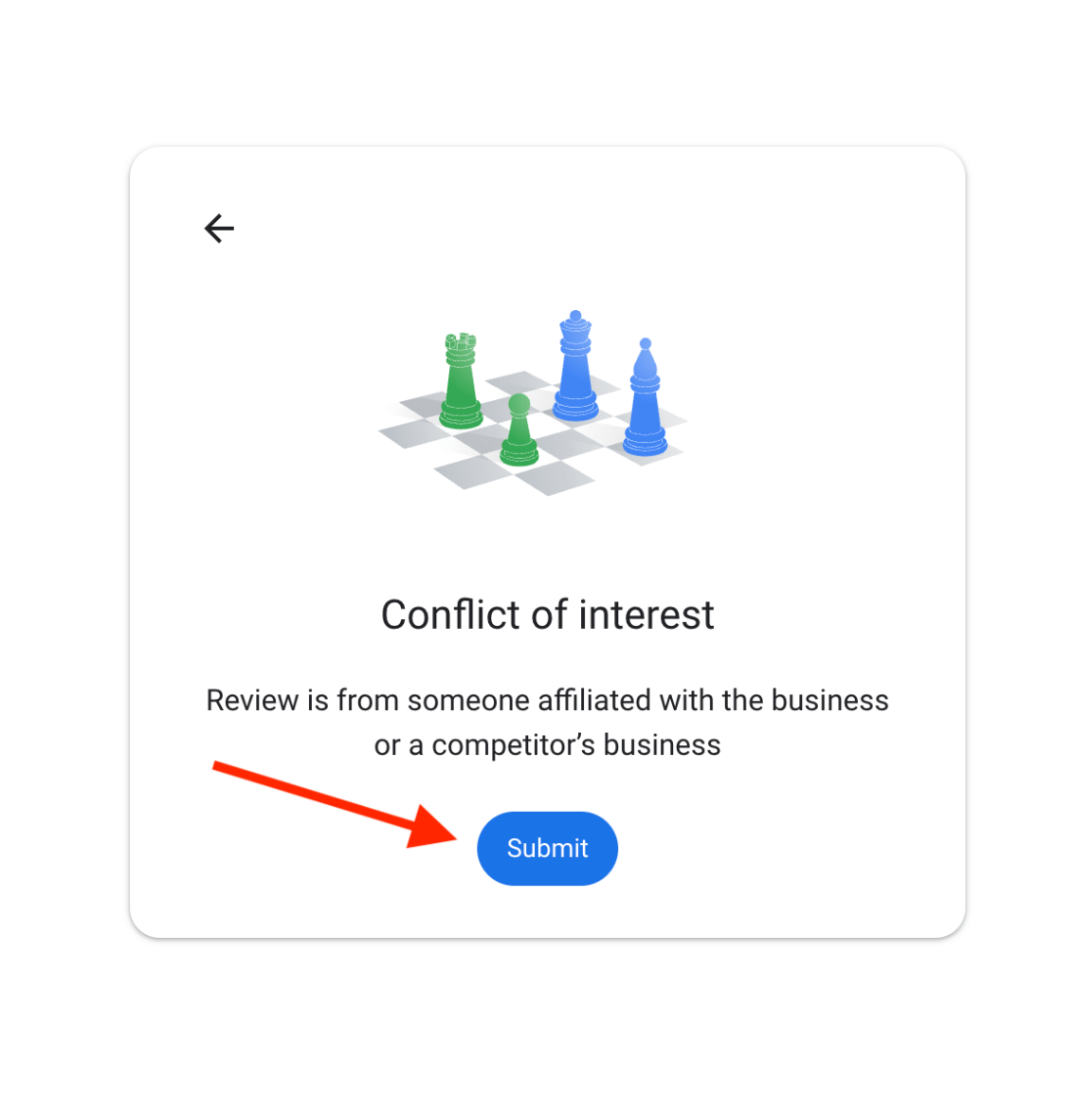

👉 That’s it. The review will now be under review by Google.
⏱️ Heads up: Google review evaluations can take a few days. You can check the status any time by going back to the Reviews Management Tool.
Option 2: Flag it directly from your Business Profile
If you don’t want to or can’t use the Reviews Management Tool, you can also report the Google review directly from inside your Google Business Profile.
- Go to your Google Business Profile. You can find your GBP by searching for it in Google or Google Maps.
Make sure you’re signed in to the Google account that manages your profile.
- Go the the “Read reviews” section.
- Find the review you want to dispute and click the exclamation symbol (!) on the right side of it.

- Select your reason and click “Send report”.
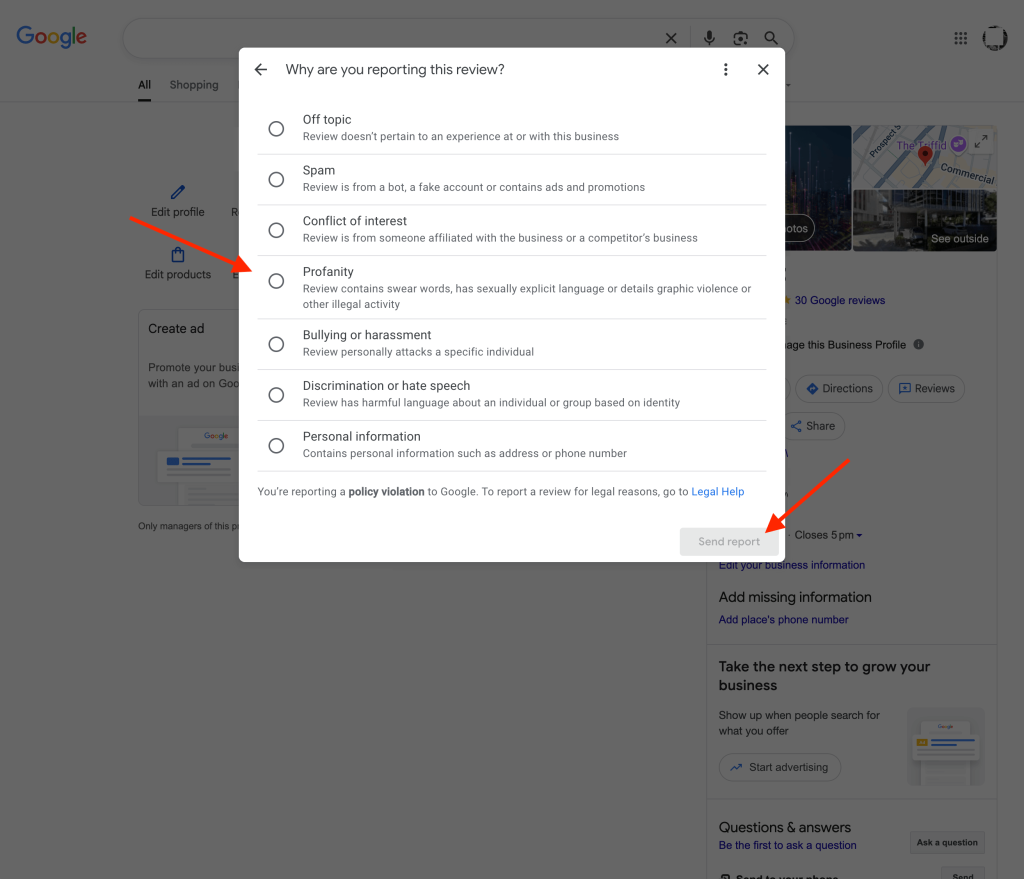


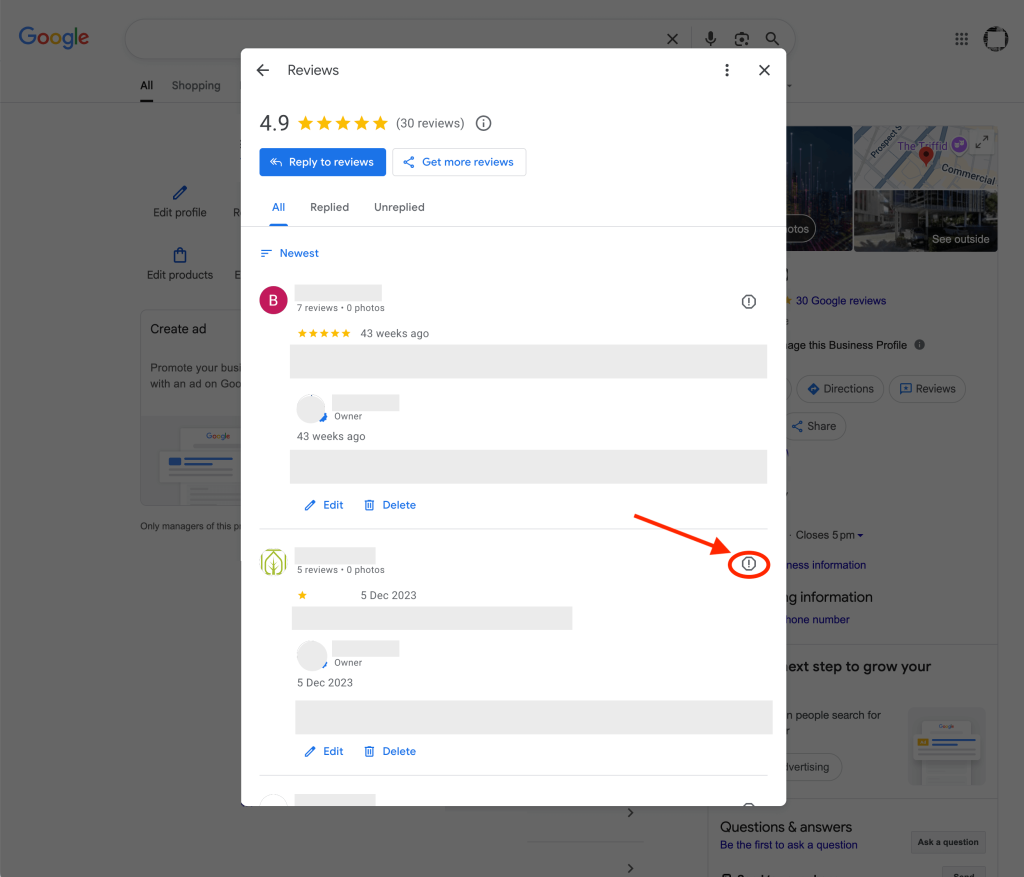
You’ll be able to track the review status from the Reviews Management Tool too, even if you flagged/reported it this way.
What if Google doesn’t remove the review?
If Google reviews your report and decides the review doesn’t break their rules, you’ll see a message like “No policy violation found” inside the Reviews Management Tool.
Even if you flagged the review from inside your GBP, this is where the result will appear.
But don’t stress — you still get one more shot if you think it needs to be re-reviewed.
How to appeal a rejected review decision
If your request to remove the review gets denied, you can submit a one-time appeal. Here’s a quick overview of how:
- Go back to the Reviews Management Tool
- Sign into your Google account and select your business
- Choose Check the status of a review I reported previously
- Scroll to the bottom and click Appeal eligible reviews
- Select the review(s) you want to appeal (up to 10)
- Fill in the form and hit Submit
📩 Once Google reviews your appeal, they’ll email you the outcome. If they still believe the review follows their rules, it will stay up and won’t be removed.
Final tips
⚠️ Make sure the review actually breaks a Google policy — not just that it offends you or feels unfair
🕒 Be patient — review decisions and appeals can take a few days
🧾 Keep evidence on hand — screenshots or messages may help during an appeal
If the review stays live
Even if Google won’t remove it, you can still respond to the review in a way that protects your reputation.
👉 Check out our How to respond to a bad Google review guide — with real examples and tips to turn a negative review into more of a positive experience.
FAQs about removing reviews from your GBP
Can you delete a bad Google review?
No — not if it’s about your business. You can’t delete Google business reviews written by other people, even if you think they’re unfair or unreasonable.
Only the person who posted the review can remove it themselves.
It might feel frustrating, but this policy helps make sure reviews reflect the truth. If business owners could delete bad reviews, it would lead to shady practices — and customers wouldn’t know what to trust.
How do I delete a review on my Google Business Profile?
You can’t directly delete a review that someone leaves about your business. If it breaks Google’s policies (like spam, fake content or harassment), you can report it and ask for it to be removed — but that’s the only way to remove negative Google reviews written by others on your business listing.
If it doesn’t break the rules, the best thing you can do is reply calmly and focus on collecting more positive reviews.
How do I remove fake Google reviews?
To remove fake Google reviews that clearly break policy, use Google’s Review Management Tool or flag the review directly from your Business Profile.
If it’s just harsh or you don’t agree with it, it likely won’t qualify. But if it’s spammy or misleading, it’s worth disputing and that’s the official process for how to remove fake Google reviews.
How do you disable reviews on Google?
You can’t disable reviews on your Google Business Profile. Reviews are a permanent feature of the platform and can’t be turned off — even if they’re negative.
If you don’t want to get new reviews, the only option is to remove or unverify your business listing entirely (which we don’t recommend, since it also removes you from Google Maps and search results).
Want to bury a bad review the right way?
👉 Not every bad review can be removed — but you can make it less noticeable by collecting more great reviews.
Trustivo helps you get more genuine, 5-star ⭐️ Google reviews with less effort. Our automated ⚙️ review generation tool works with Google, Facebook, Yelp and other major platforms — sending SMS and email 📩 review requests to your customers after each job or sale.
You can choose to send invites automatically to every customer — or manually select who gets them, if you’re not confident enough to ask every customer for a review just yet.
It’s simple, consistent and works in the background ✅ helping you build up more good reviews and a stronger reputation over time.
👉 Start your free trial today.
How many 5-star reviews do you need to lift your score back up?
Use our free online review calculator 📲 to see how many new 5-star reviews you’ll need to bring your Google rating back up — especially if Google doesn’t remove a review you tried to dispute.
It’s fast, easy and gives you an actual number of ⭐️ reviews to aim for.