👉 Want to leave a Facebook review but not sure how to?
Maybe you had a great experience and just want to support a local business — or maybe you want to give people a heads-up before they book in somewhere.
Whatever the reason, leaving a review on Facebook is one of the easiest ways to share your experience.
It’s fast, it’s public and it helps other people decide who to trust.
And with Facebook holding around 19% of all online customer reviews (Wisernotify), it’s still one of the most widely used platforms for sharing feedback — especially in local communities.
In this quick guide, we’ll walk you through:
✅ How to write a review on Facebook (on a business page)
✅ How to post a review on Facebook
✅ What to do if you can’t find the review tab
✅ Simple tips to write a review that’s actually helpful (without overthinking it)
Let’s get into it.
How to write a Facebook review (step-by-step)
Leaving a review on Facebook takes less than a minute. Here’s how to do it:
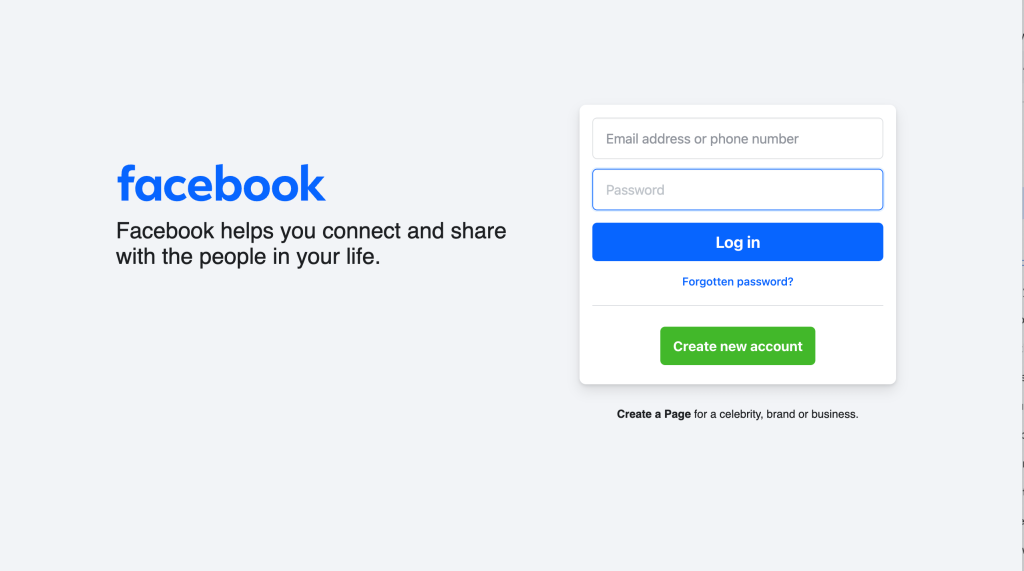
- Log in to your Facebook account.

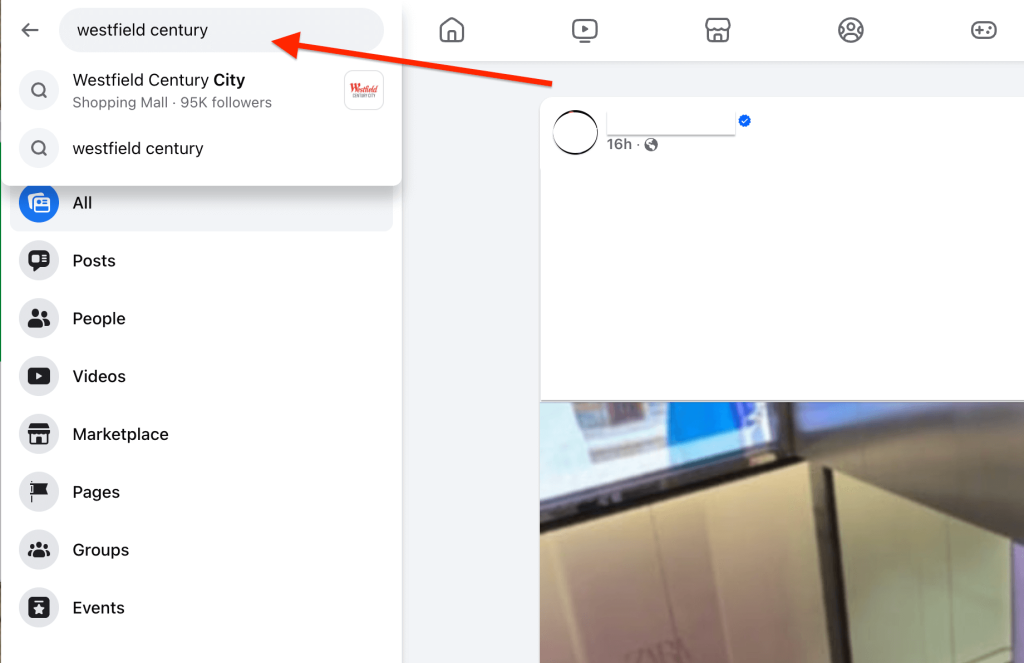
- Search for the business’s Facebook page.

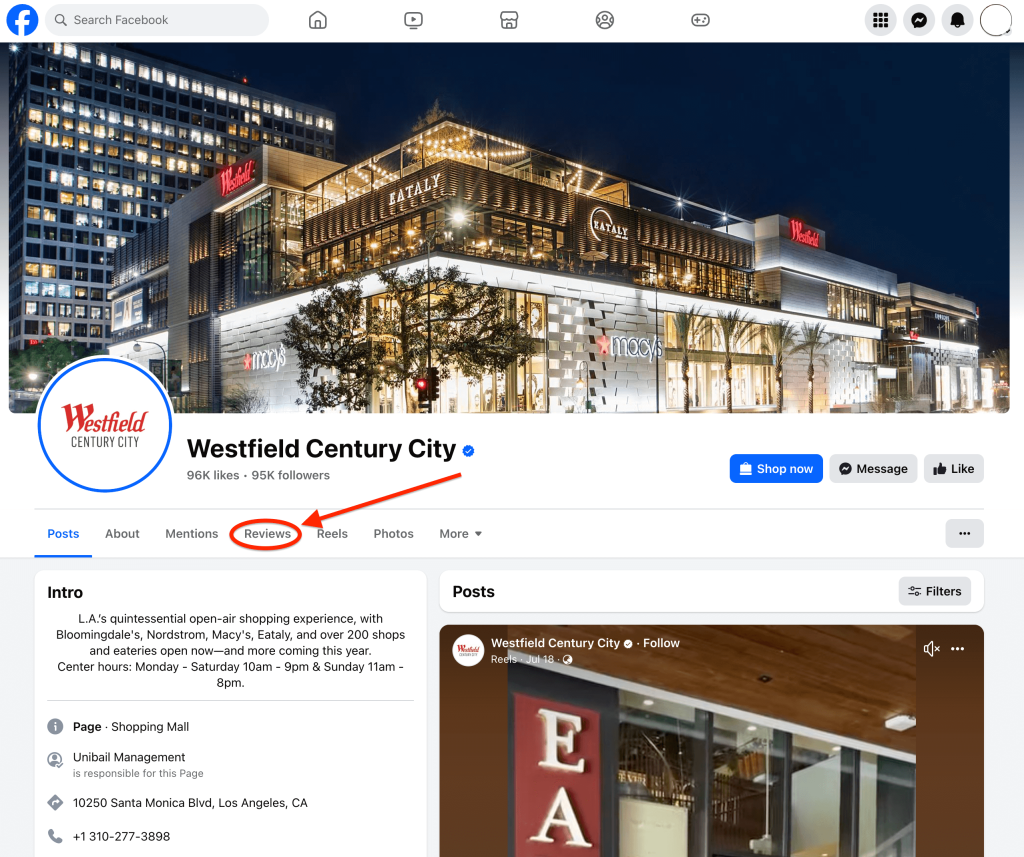
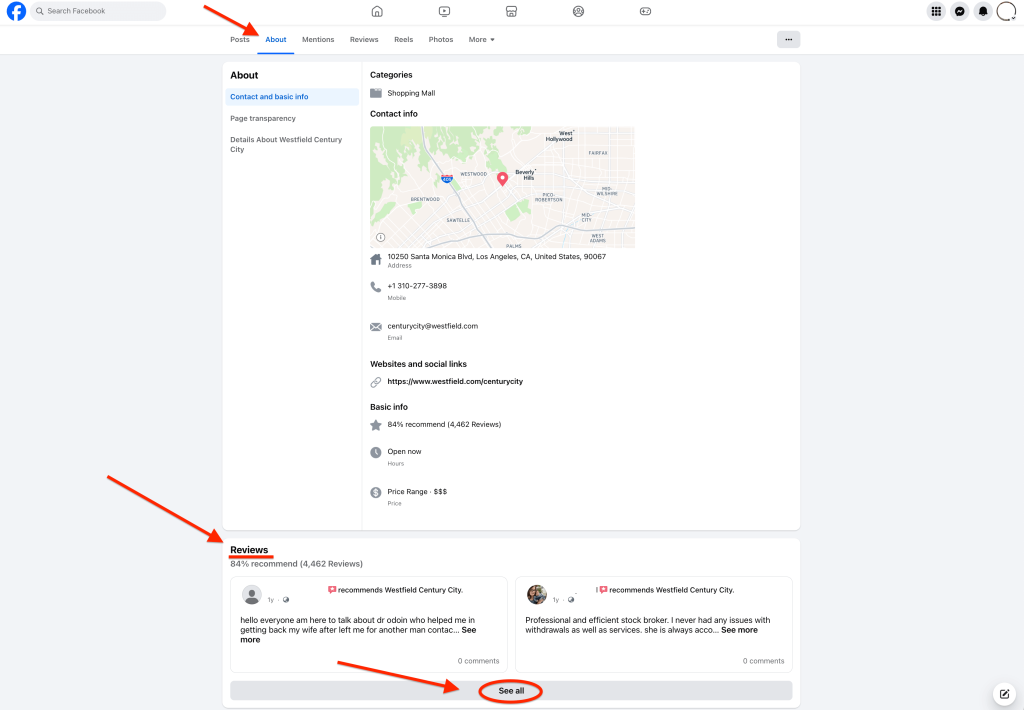
- Click on the “Reviews” tab. If the Reviews tab isn’t visible, click the “About” tab, scroll down the the “Reviews” section and click “See all”.

☝️ Reviews tab on a business facebook page 
☝️ About tab on a business Facebook page 
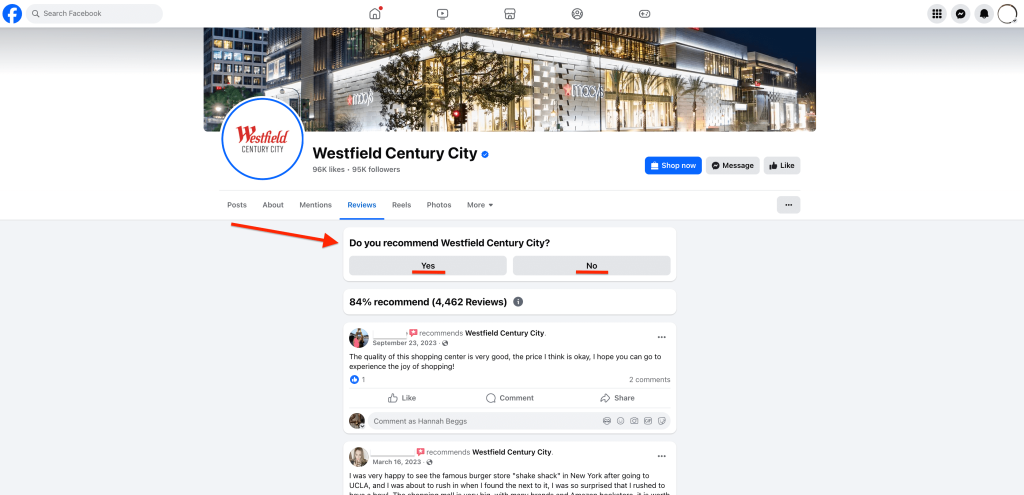
☝️ How to find the Reviews section from the About tab - Click “Yes” or “No” under “Do you recommend [Business Name]?” depending on if it’s a good or bad review.

- Write your review and click “Post”.

☝️ Where to write your review 
☝️ Click “Post” after writing your review



🎉 That’s it — your review will appear publicly on the business’s page.
✏️ Optional:
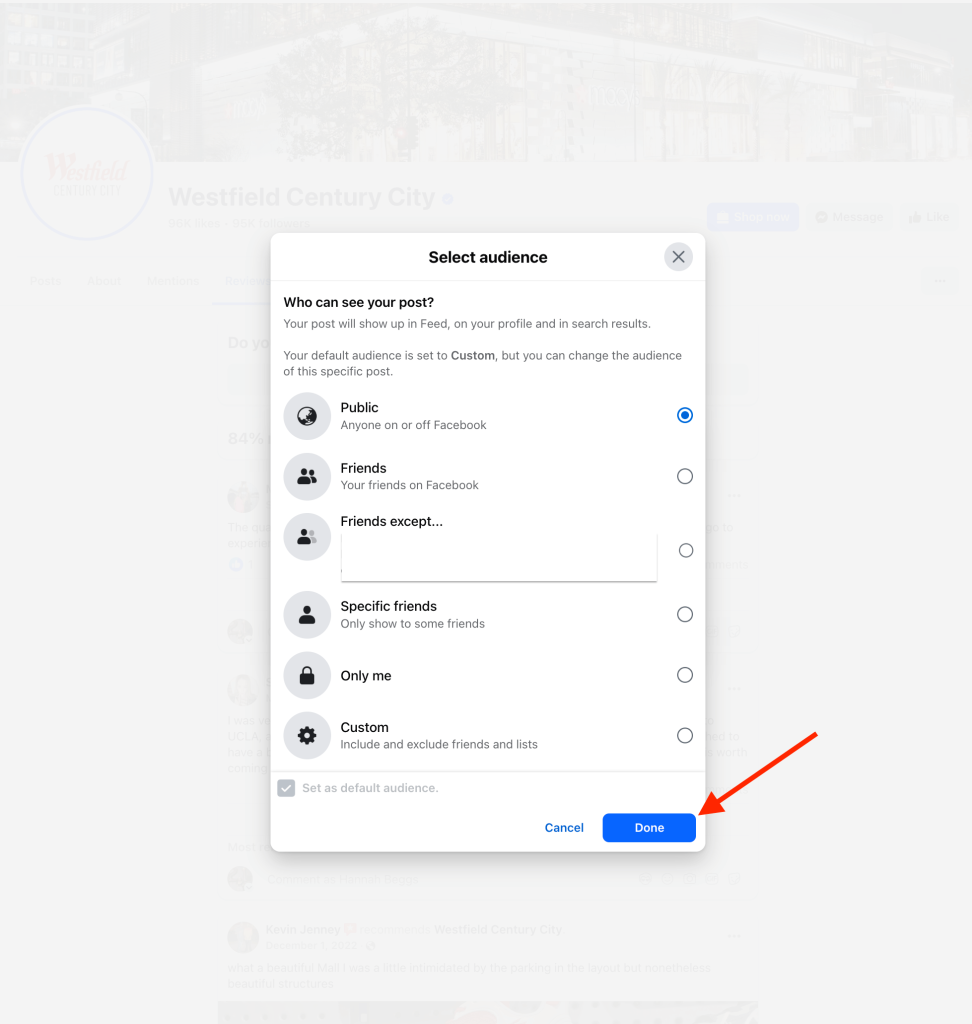
Before posting, you can choose who sees your review (e.g. Public, Friends, or Only Me). Most people leave it set to Public so others can benefit from their feedback and see it but you can select which audience you’d like.

⚠️ What if there’s no place to leave a review?
📌 Not every business has their Facebook reviews turned on.
If you don’t see the “Do you recommend this place?” option anywhere, it usually means:
- The business hasn’t turned on reviews in their settings
- You’re viewing a page that’s not set up as a business page/profile
- You’re using the app, and the layout has shifted — try using the desktop version
In these cases, you can still give the business feedback by:
- Tagging them in a post or story
- Leaving a review on Google, Yelp or another platform
- Sending them feedback directly through Messenger
Tips for writing a helpful Facebook review
You don’t need to overthink it — but including a few quick details can make your review a lot more useful to others (and to the business too).
✅ Be specific
Mention what you paid for — whether it was a haircut, a repair or a birthday booking of some sort. Giving a clear example helps people understand the type of service you received and whether it’s similar to what they’re looking for.
The more specific you are, the more helpful your review becomes.
✅ Share what stood out
Think about what made the experience memorable — not just what happened, but how it felt.
Was someone particularly helpful? Was the service faster than expected? Did they go above and beyond?
Mentioning a staff member by name or describing a personal moment helps others know what (and who) to trust.
✅ Keep it clear and respectful
Even if your experience wasn’t perfect, reviews are more useful when they’re fair and honest.
Avoid exaggerating or getting emotional — just explain what happened in a calm, clear way. These kinds of reviews are also more likely to be taken seriously (and more likely to get a professional response too).

💬 A helpful review might sound like:
“The team fixed our blocked drain fast and gave us a few tips to avoid the issue next time. Big thanks to James — professional, tidy and easy to deal with. Highly recommend.”
❌ Try to avoid one-word or very short reviews like “Awesome!” or “Wouldn’t go back.” They don’t give much insight and can feel a bit vague, untrustworthy or even fake.
That’s all there is to it ✅
👉 Writing Facebook reviews is simple — and it actually makes a difference.
Whether you’re recommending your favorite local café or warning others about a not-so-great experience, your feedback helps people make more confident choices.
So next time you’ve got something to say, don’t hold back — leave a review and let others know what to expect.
Frequently asked questions
How do I post a review on Facebook?
Once you’ve written your review and selected “Yes” or “No” to recommend the business, just click Post.
Your review will go live on the business’s Facebook page, where others can see it.
If you don’t see the Post button, make sure all required fields are filled and you’re logged in to your account.
Do I need to follow the business before leaving a review?
No — you don’t need to like or follow the business page to leave a review.
As long as the reviews are turned on for that business page, anyone with a Facebook account can post a review to it.
Can I leave a review from the Facebook app?
Yes. The process is the same for mobile — open the app, search for the business, tap their Reviews or About tab, and follow the prompts.
Just keep in mind that some features (like the review tab placement) might look different depending on your device.
Are Facebook reviews public?
Yes — reviews are public by default and show up on the business’s profile.
You can choose to change the visibility before posting, but most people leave it set to Public so others in the community can benefit from it.
Will my Facebook friends see that I left a review?
Yes. If your review is set to Public, your friends may see it in their feed — especially if they follow the same business or interact with similar pages.
Your name and profile picture will also appear with the review.
You can choose a different audience (like “Friends only”) before posting or change it afterward in your settings.