👉 Want to start getting Facebook reviews for your business?
You’ll first need to make sure your Facebook page is set up correctly — and that the reviews section is visible and ready to go.
Facebook reviews help people find your business, build trust quickly and see what others are saying — all in one place.
And nearly 50% of U.S. internet users check Facebook for business reviews (Statista 2017), putting it just behind Google and Yelp as a go-to for recommendations online.
In this guide, we’ll show you how to get Facebook reviews by:
✅ Making sure you have a Facebook business page (not a personal profile)
✅ Turning on reviews if the option isn’t showing on your page
✅ Finding your Facebook review link — and using it to start collecting feedback
Let’s get started.
Step 1: Make sure you have a Facebook business page
To get Facebook reviews, you’ll need an actual Facebook business page (not just a personal profile or community group).
✅ Already have a Facebook page for your business?
Great — you can skip ahead to Step 2.
⚠️ Not sure if you have a Facebook business page?
Here’s how to quickly check if you have a Facebook page set up for your business:
- Log into your personal Facebook account and click your profile picture (top right corner).
- Here in this drop down menu you’ll see if you have any other profiles (or a business page).
- If you still don’t see your business in the drop down menu, try clicking the “See all profiles” button and checking if your business Facebook page is in the full list.

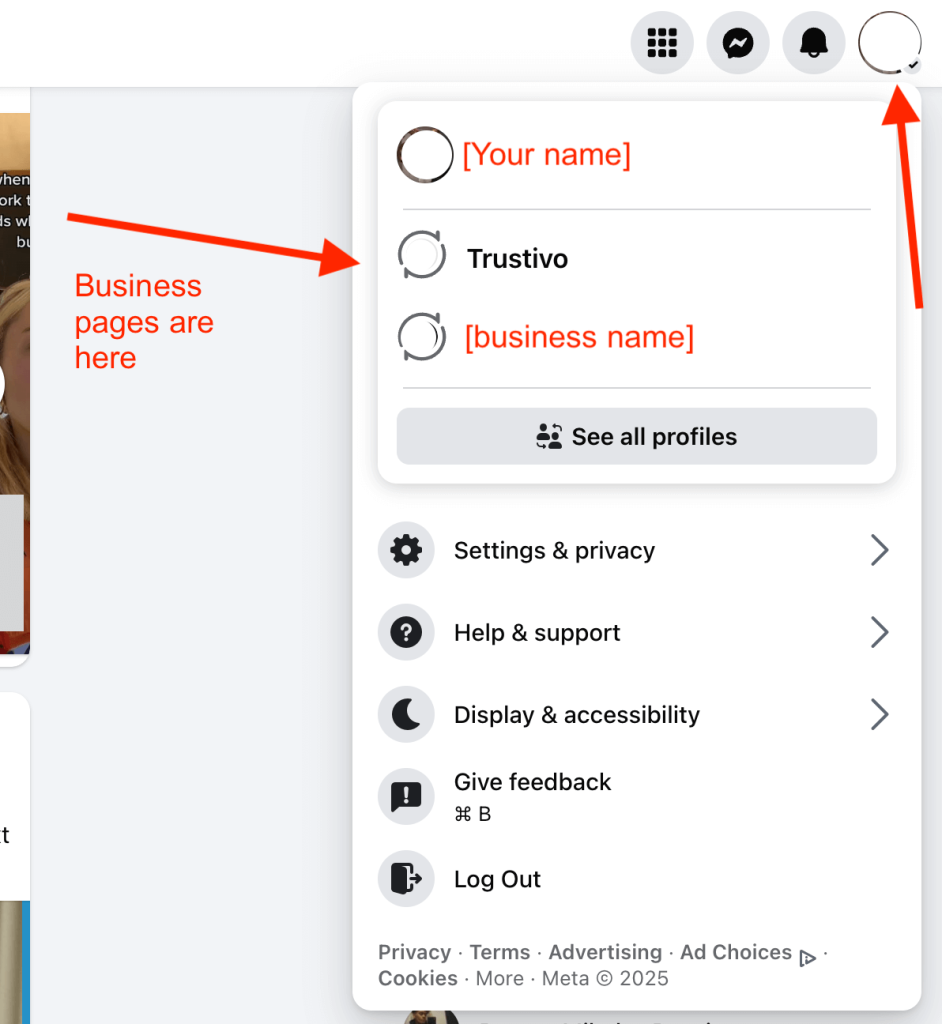
👉 If you see your business listed here then you have a Facebook business page already.
🔓 If you’ve had an agency or someone work on social media for your business, you’ll likely have a business page and may just need to request access to the page.
👩🏻💻 If you don’t see any other profiles listed here and don’t see your business, then you don’t have a Facebook page for your business and need to create a page first using the steps below.
❌ Don’t have a business page yet?
Follow these quick steps to create one:
-
Log in to your personal Facebook account (you need to create the business facebook page from within your personal account).
-
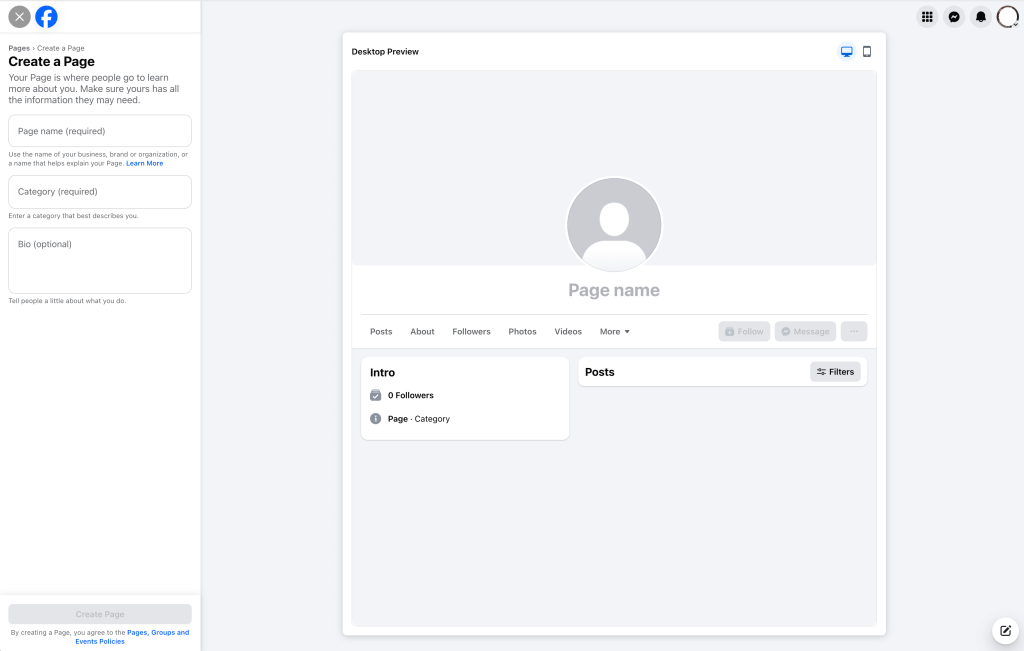
Go to facebook.com/pages/create

-
Enter your page name (your business name) and choose a “Category” (you can add up to three that describe what you do). You can also optionally add a short bio while you’re here.
-
Click “Create Page”
-
Then follow the prompts to upload your photos and add your business details where requested (like website, phone number or service area)
-
Click “Done”
Step 2: How to turn on reviews on Facebook Page
👉 Now it’s time to make sure the reviews section is turned on on your Facebook business page and is visible to the public.
In most cases, reviews are turned on by default — especially if you selected a common business category like “Local Service”, “Restaurant” or “Professional Services” when creating your page.
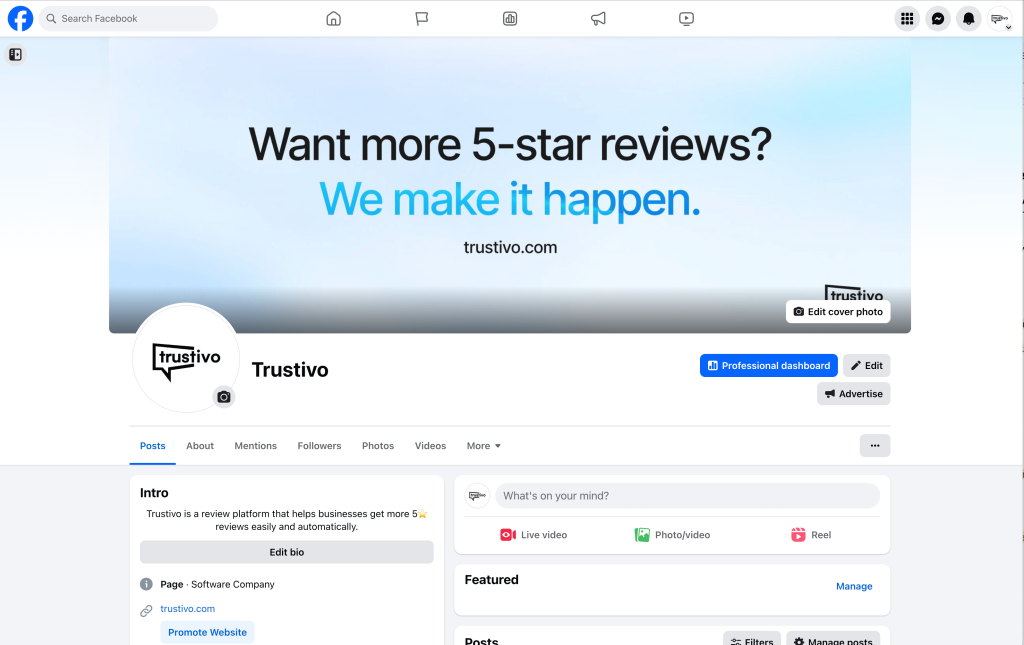
But if you don’t see a “Reviews” tab when viewing your page (like the example below), it may be turned off and you’ll need to manually enable it.
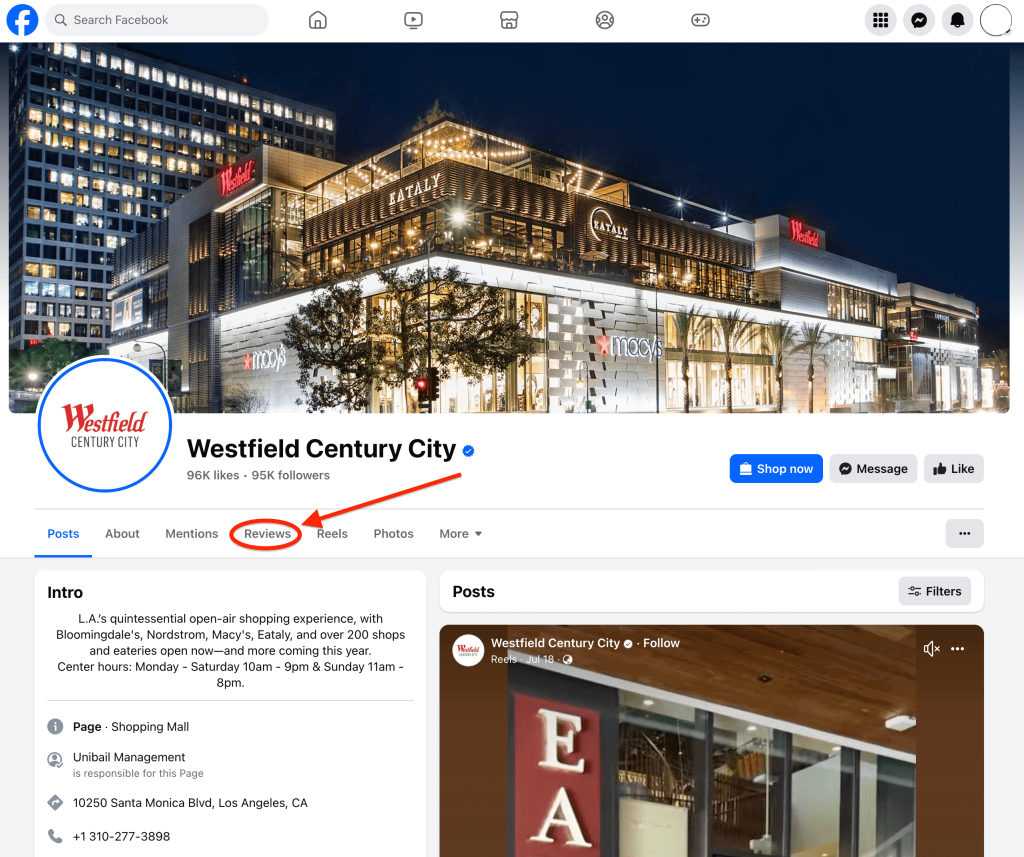
How to turn on Facebook reviews (if they’re switched off):
- Go to your Facebook business page and click on the “About” tab in the top menu.

- You’ll automatically land in the “Contact and basic info” section.

- Scroll down to the “Basic info” section and click “Turn on Reviews”.

- Then toggle reviews on and click “Save”

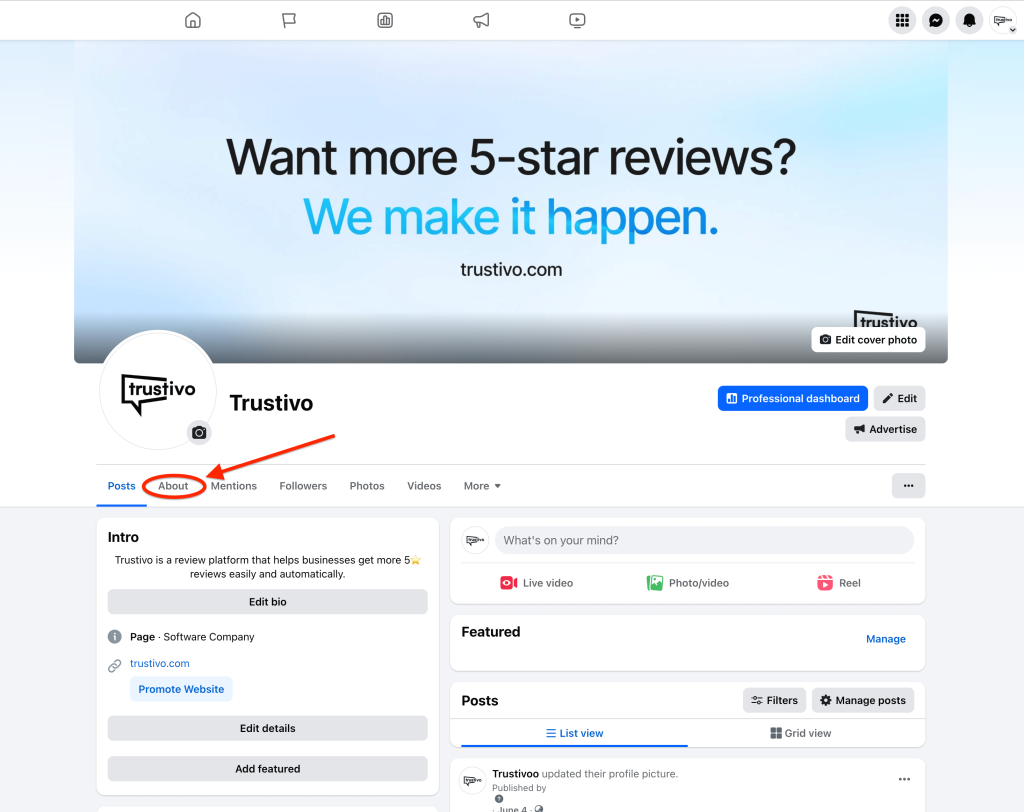
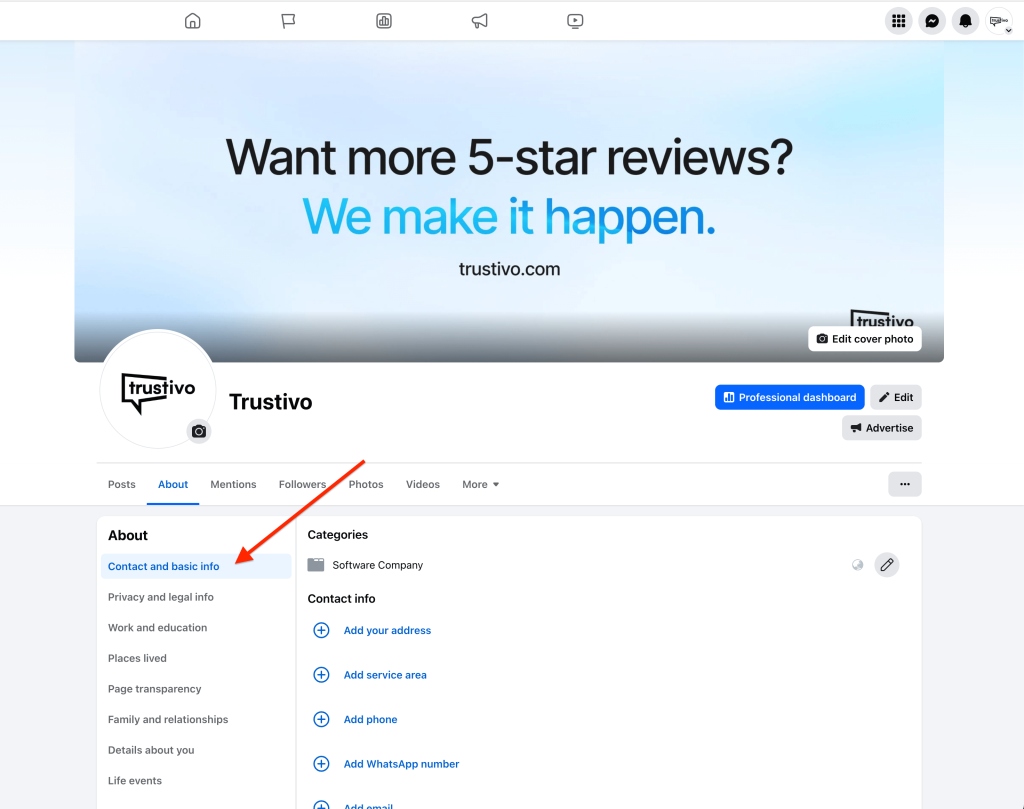
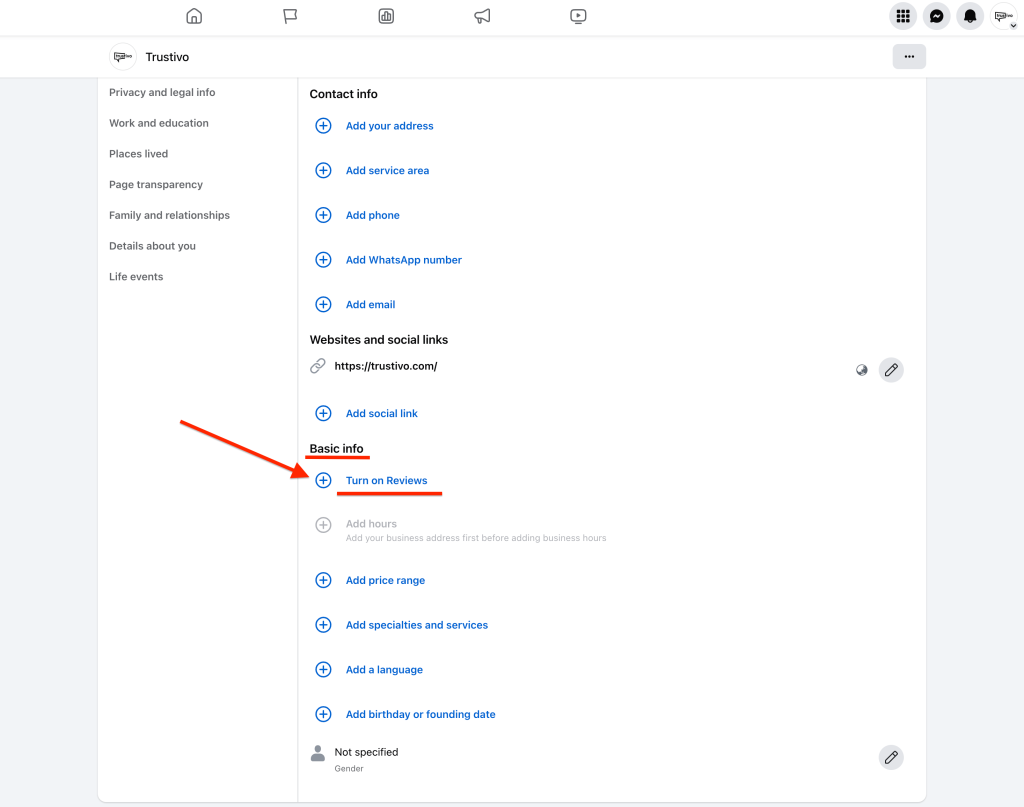
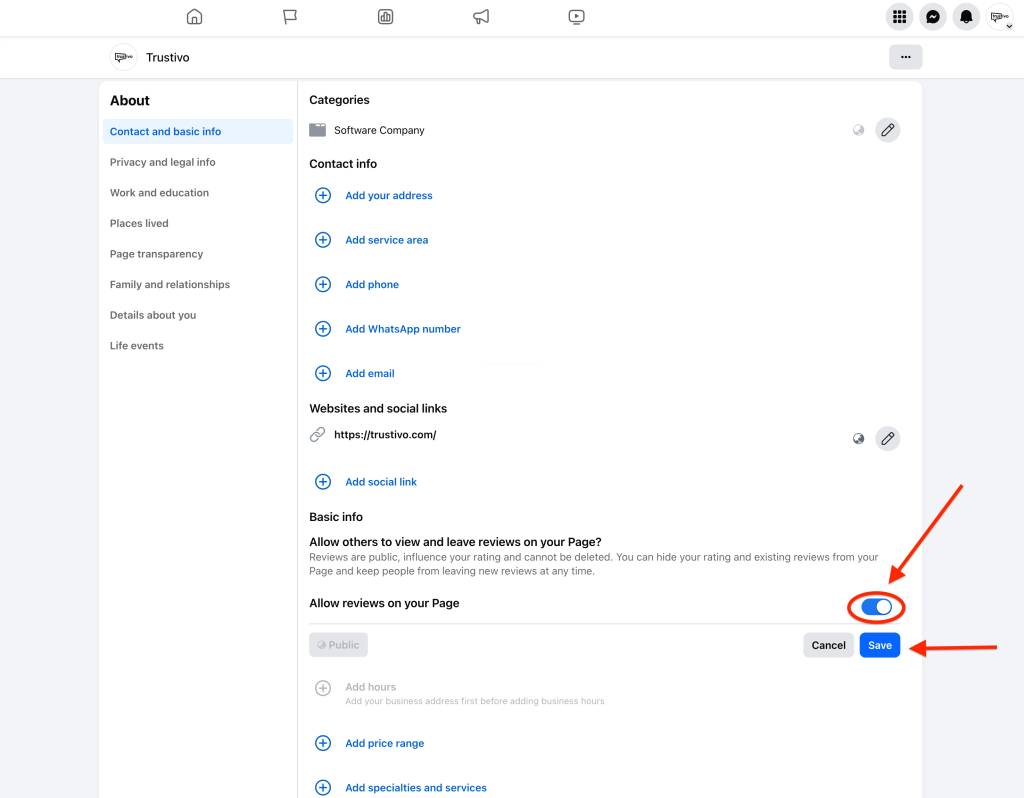
Once enabled, the “Reviews” tab will appear on your page — usually in the top navigation bar or under the “More” menu on mobile.
🎉 Now new customers will be able to leave reviews, and your star rating will be visible.
Step 3: Find your Facebook review link
👉 Once your reviews are turned on, the next step is to find your direct Facebook review link — so you’ve got it ready when you need it.
This link takes people straight to the “Reviews” section on your Facebook business page, without them needing to search for your business on Facebook.
It helps reduce friction and makes the review process for your customers a lot easier.
How to get your Facebook review link:
- Go to your Facebook business page.

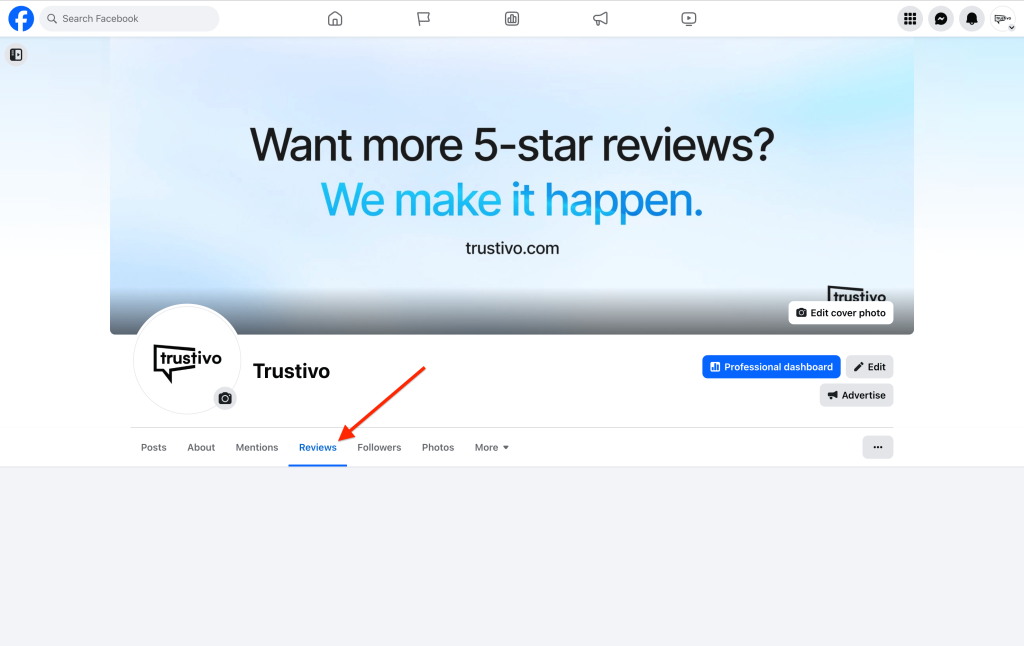
- Click the “Reviews” tab (you’ll find it in the top menu or under “More” if on mobile).

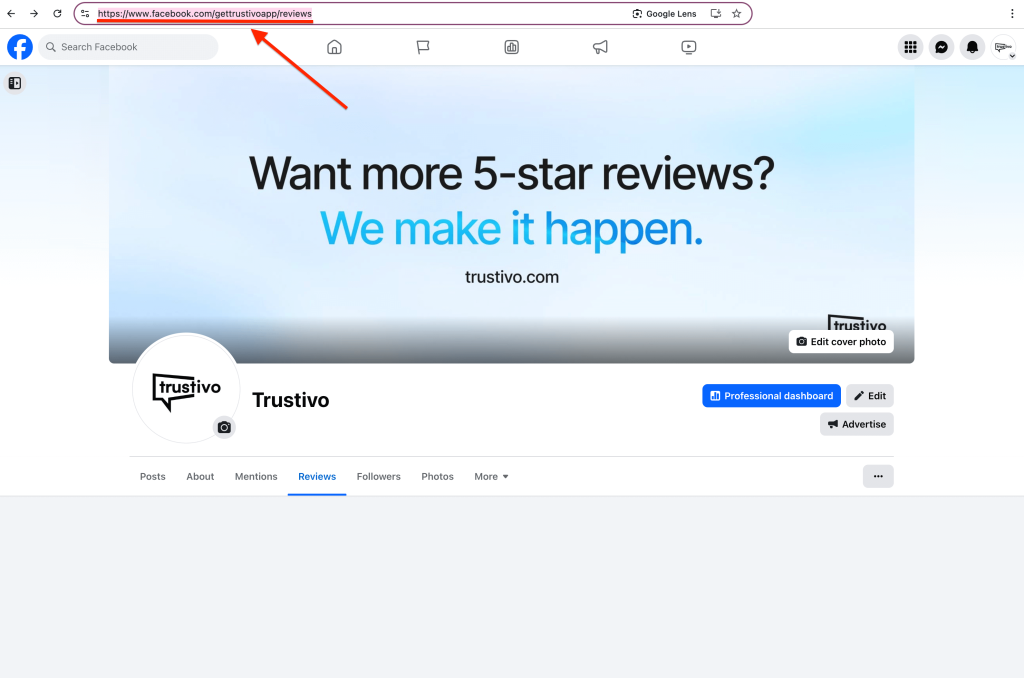
- Copy the URL from your browser — this is your direct review link.
Your link will look something like:
“https://www.facebook.com/YourBusinessName/reviews”.
⚠️ If you haven’t set a username for your Facebook page:
Your link might look more like this:
“https://www.facebook.com/profile.php?id=1234567890/reviews”
And that’s totally fine — this type of link still works for reviews.
Step 4: Send your review link
👉 Having your review link ready is one thing — sending it the right way (and at the right time) is what actually gets you more reviews and results.
Some customers will leave a review on their own.
But most won’t (even if they had a great experience) unless you make it easy and give them a gentle nudge.
Where to send your Facebook review link:
You can include your review link in places like:
✅ A thank-you email after a job or sale
✅ A quick follow-up SMS message
✅ Your website or booking confirmation page
✅ A QR code on receipts or printed cards
💬 Not sure what to say when you send the review link?
We cover what you can say, including simple message examples, in our guide: How to ask for a review on Facebook.
Want an easier way to get more reviews?
👉 Sending your review link manually can work — but staying consistent is where most businesses struggle.
That’s where Trustivo comes in.
Our platform sends review requests 📩 to customers automatically ⚙️ after each job or sale, follows up with reminders if there’s no response from them, and gives unhappy customers a chance to leave feedback with you privately 👩🏻💻 (before their review goes public).
It’s like a “set and forget” review generation tool that keeps your reviews growing in the background 📈 without you having to chase people yourself or remember to ask every time.
Prefer to stay more hands-on?
You can also send requests individually, when it suits you — which is great if you’re not confident sending it to every customer just yet.
Even when sent one-by-one, Trustivo still handles the follow-up reminders and tracking for you.
✅ Works for Facebook, Google, Yelp and 70+ other platforms
✅ Track your reviews + performance in one easy dashboard
✅ Simple monthly pricing with no long-term lock-ins